Raw Reads are every read your Streams pick up before RaceDay Scoring filters and selects them as Scored Reads for calculating results. Viewing Raw Reads helps you troubleshoot missing Scored Reads and clean up bad data before it affects your results.
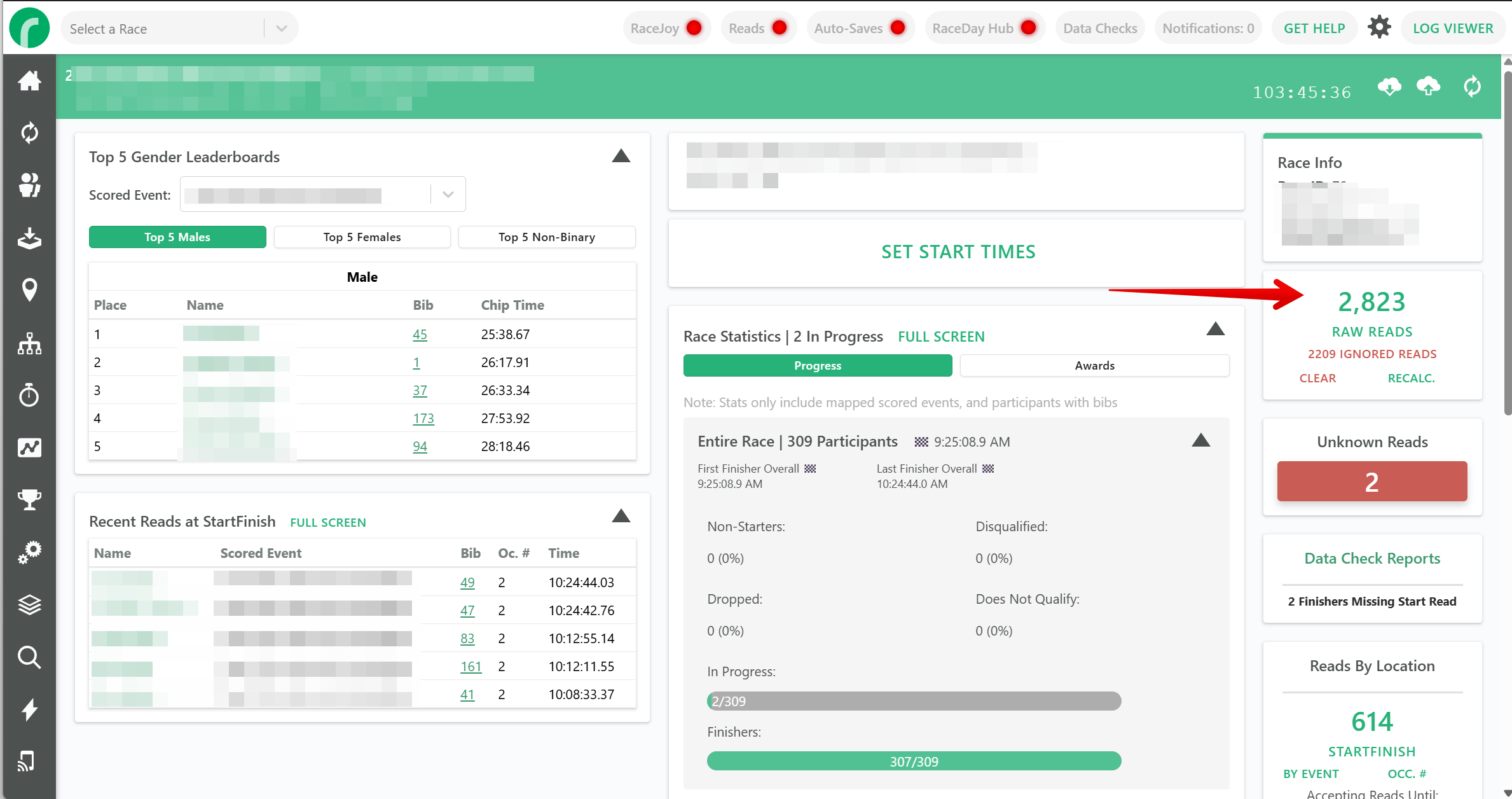
Opening the Raw Reads list
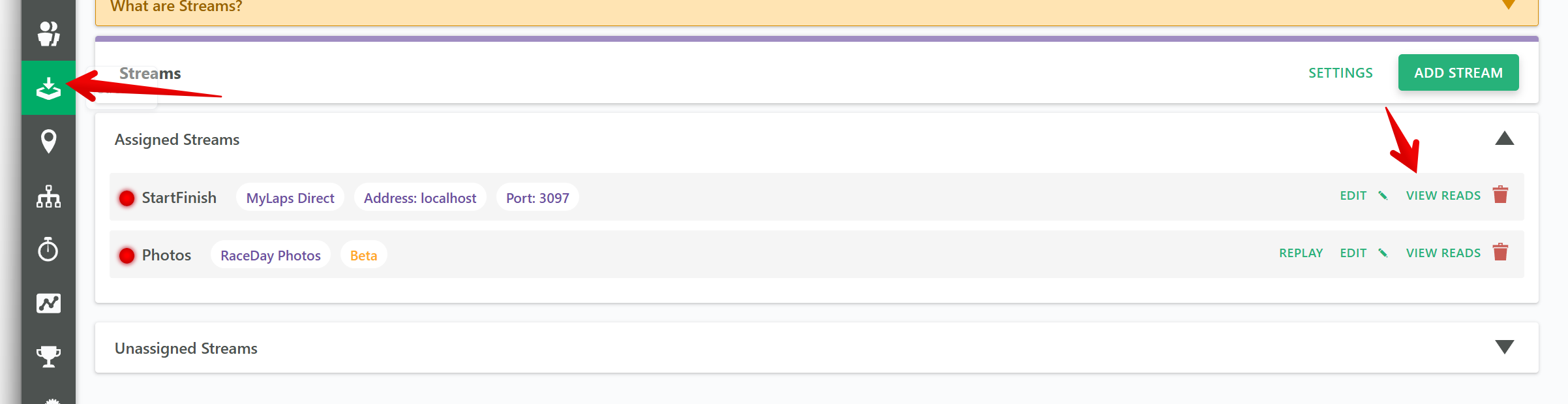
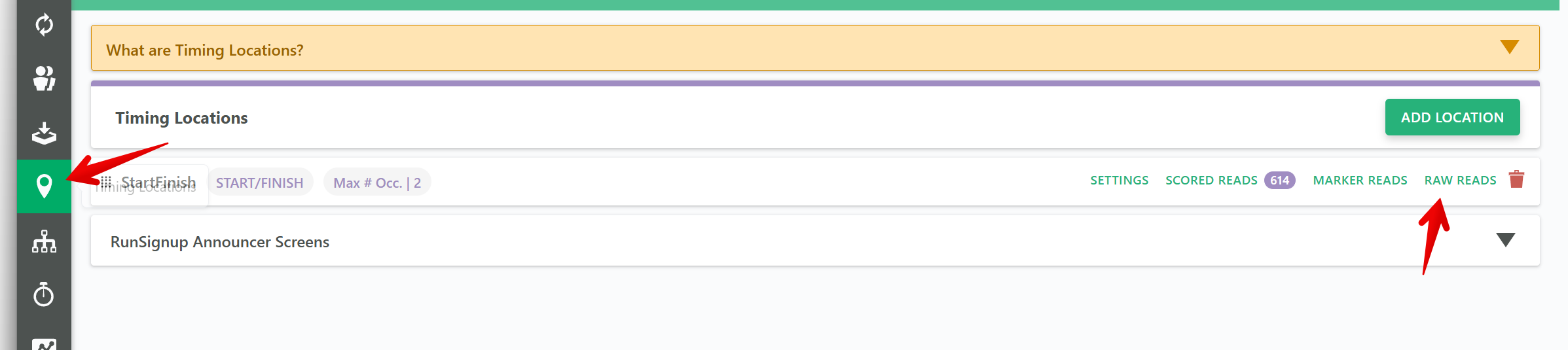
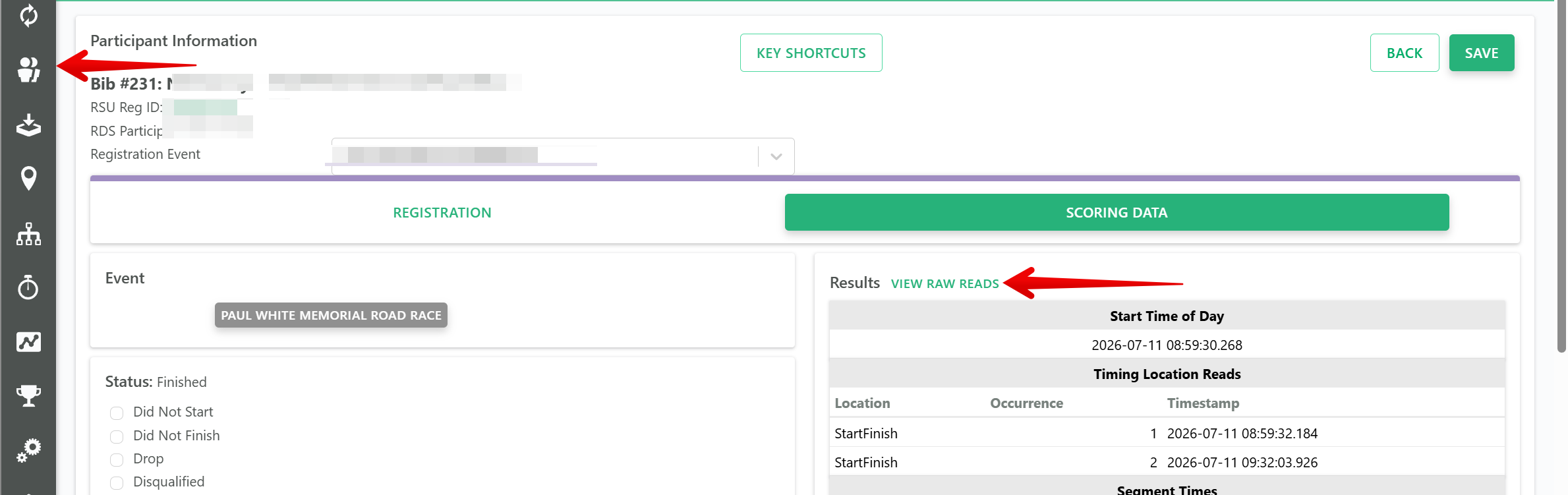
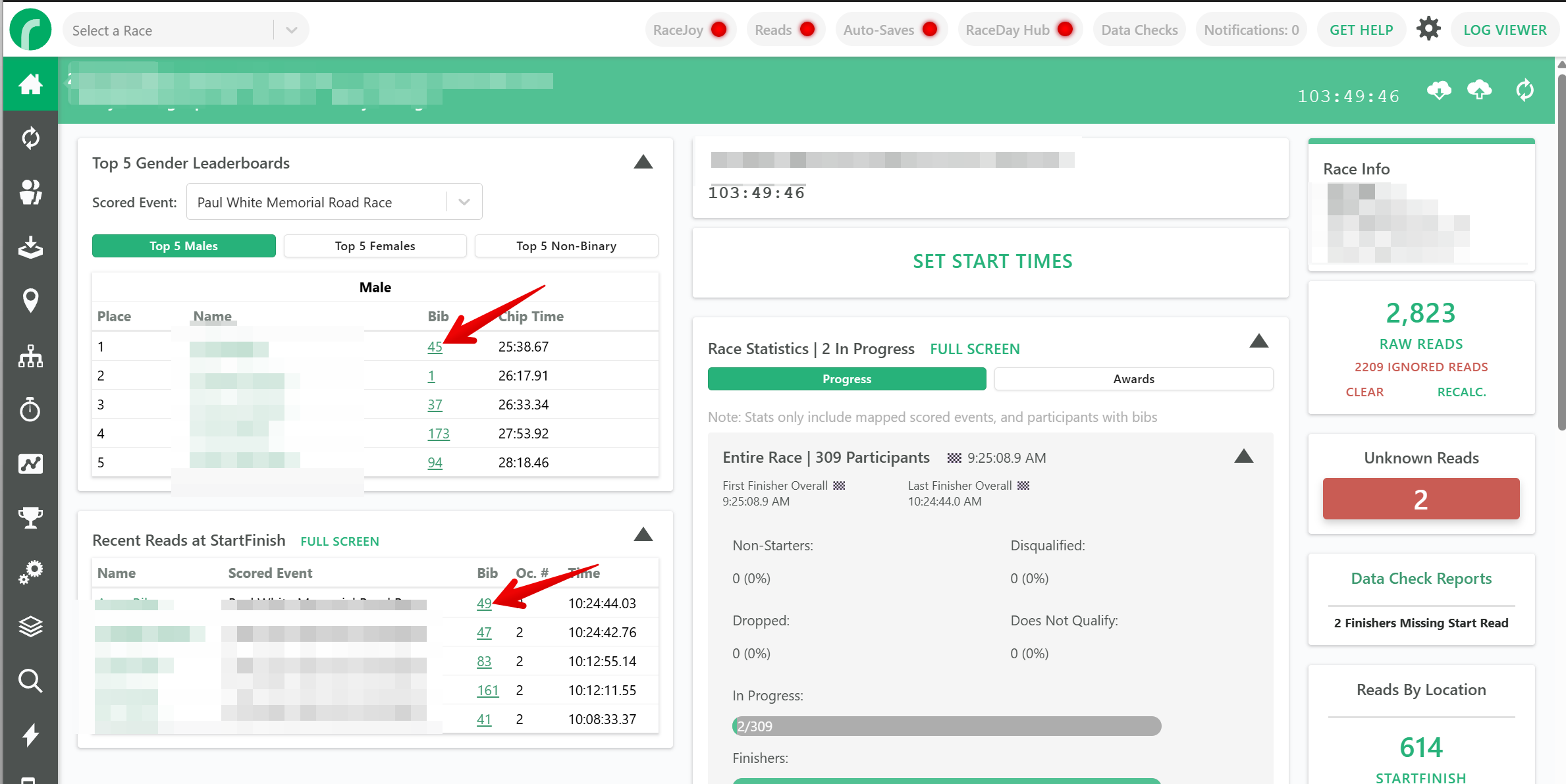
You can also open Raw Reads already filtered to what you're looking at:
- From a Stream or timing device, click View Reads.
- From a Timing Location, click Raw Reads.
- From a participant's screen, click View Raw Reads above the Results panel to see that participant's reads.
- From the participants list, or anywhere else you see a bib or chip number as a clickable link (such as reports or leaderboards), click it to open Raw Reads filtered to that bib or chip.
Reading the columns
The Raw Reads list shows these columns by default:
- Name - The participant's name for this read. For group events, this splits into Team Name and Participant Name.
- Bib - The bib assigned to the participant.
- Read Bib - The bib RaceDay Scoring read directly from the chip or tag.
- Read Chip - The chip code for this read.
- Date - The date of the read.
- Time - The time of the read.
- 24 Hour Time - The time of the read in 24-hour format.
- Used - Whether this read was selected for scoring.
- Reason - Why this read wasn't selected for scoring, when it wasn't used.
- Location - The timing location this read came from.
- Scored Event - The Scored Event this read is associated with.
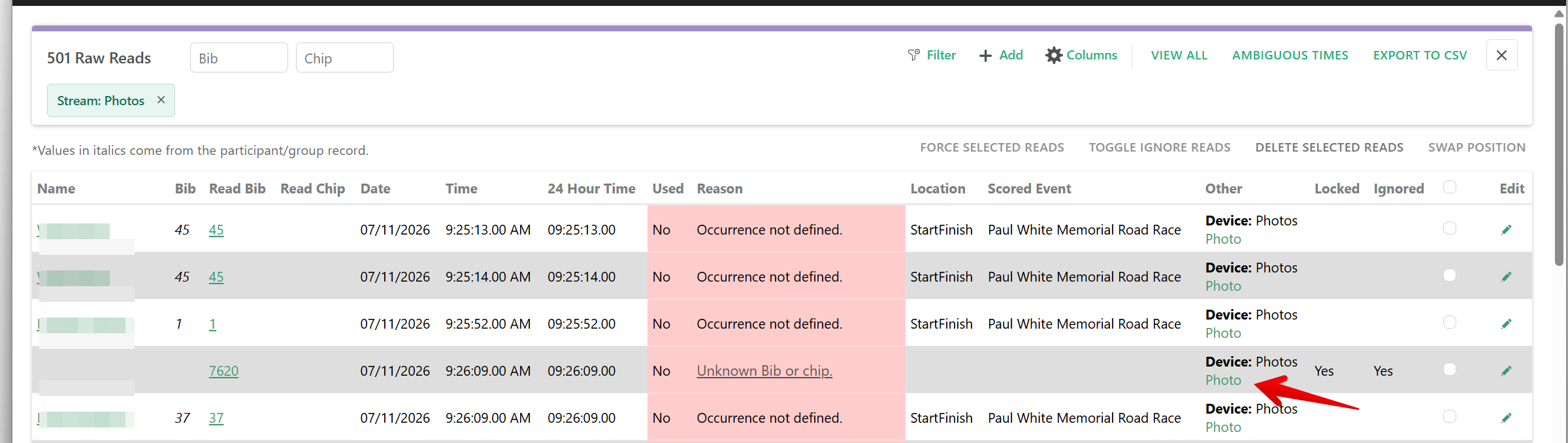
- Other - Additional data specific to your chip system, including photo links from Photo Timing streams (see below).
- Locked - Whether the read is locked from automatic changes.
- Ignored - Whether the read is ignored and excluded from scoring.
Click Columns to add optional columns, such as Occurrence, Segment, and Net Time, or to reorder the columns you see.

Searching and filtering
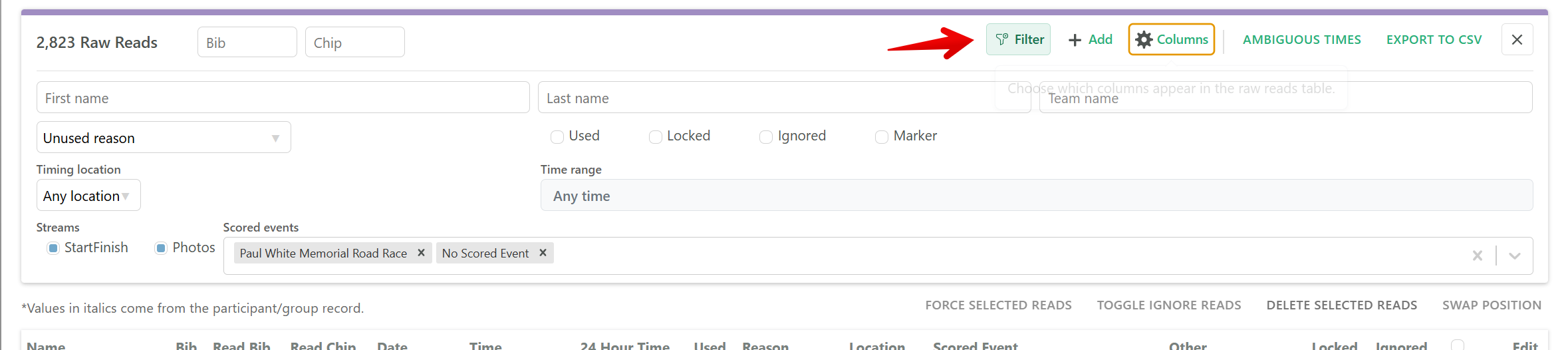
Use the Bib and Chip fields in the toolbar to quickly find a specific read. Click Filter to open the full filter panel, where you can search by first name, last name, or team name, filter by Reason, and narrow results to reads that are Used, Locked, Ignored, or Marker reads. You can also filter by Timing location, Time range, Streams, and Scored events.
Active filters show as chips above the list. Click View All to clear every filter and see the full list again.
Selecting reads and bulk actions
Select one or more reads using the checkboxes on each row, or select every read matching your current filter. With reads selected, you can:
- Force Selected Reads - Force the selected reads into scoring.
- Toggle Ignore Reads - Mark the selected reads as ignored, or restore them if they're already ignored.
- Delete Selected Reads - Permanently delete the selected reads.
- Swap Position - Swap the order of two selected reads.
Click Add to manually add a read that's missing from a Stream. Click EXPORT TO CSV to download the current list of reads.
Viewing photos from a Photo Timing stream
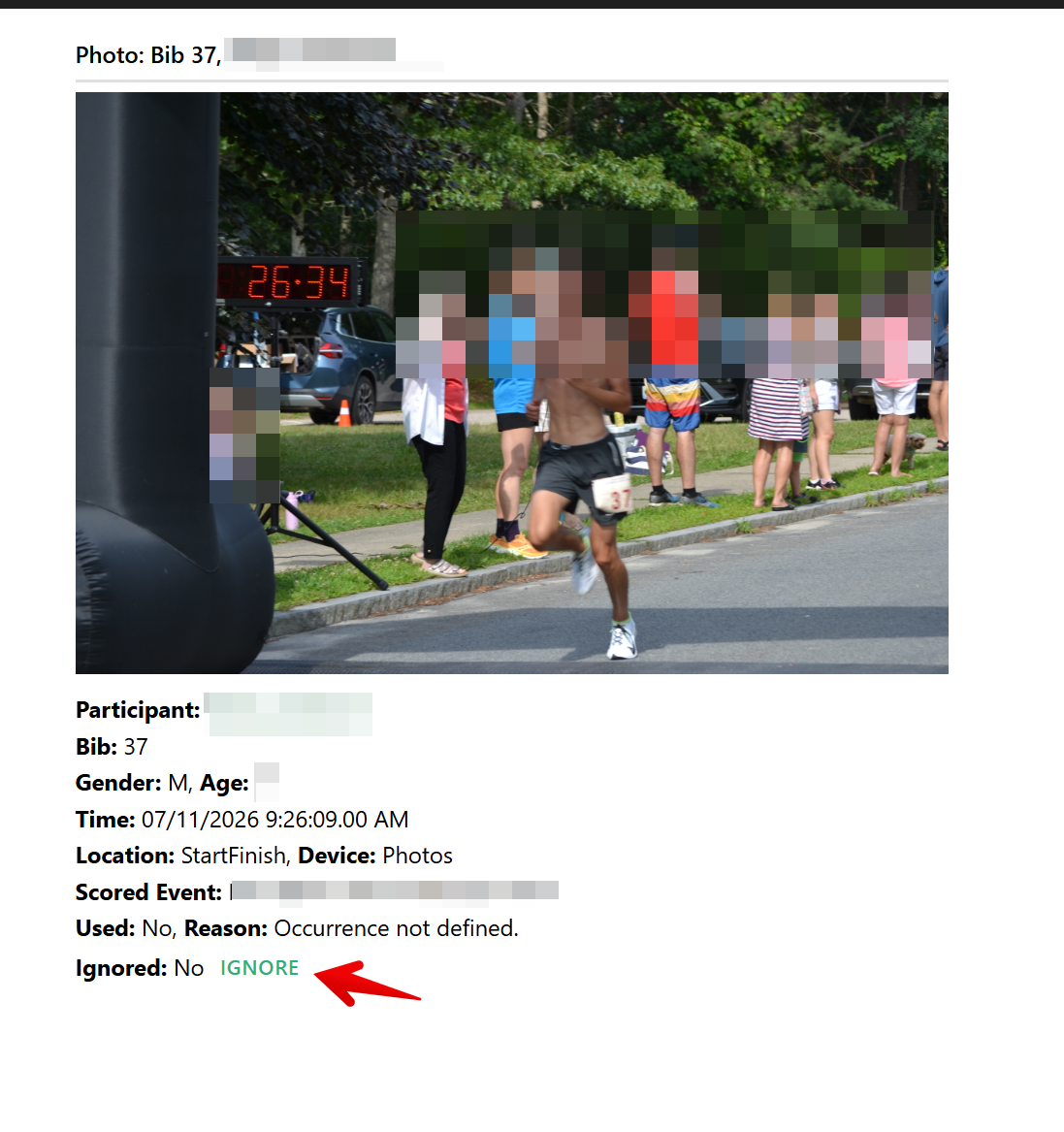
If a Raw Read came from a RunSignup Photo Timing stream, the Other column shows a Photo link for that read. Click the link to open the tagged photo in a dialog without leaving RaceDay Scoring.
From that photo dialog, you can mark the read Ignore, or restore it with Unignore if you already ignored it. This is useful when a photo was tagged with the wrong bib number and you don't want it included in scoring.
Notes
- If a Timing Location is set up with read type START/FINISH (a single location used for both starts and finishes, common on loop or out-and-back courses), participants can end up with more than one valid set of start and finish reads based on that location's Gap Factor. Click Ambiguous Times in the toolbar to review those participants and choose which set of reads to use for scoring.