Custom fields are local-only fields that you can create, modify, and delete within RaceDay Scoring. The custom fields you create will not be sent to RunSignup, and neither will their responses.
You can use custom fields to set participant or team information and to view responses within reports and results in the same way as RunSignup custom questions.
Adding a Custom Field
- Go to Participant Sync (or Sync Settings on a RunSignup race).
- Click Add Custom Fields.
- Choose the settings below (type, label, Applies To, required, and field type).
- Click Add Custom Fields.

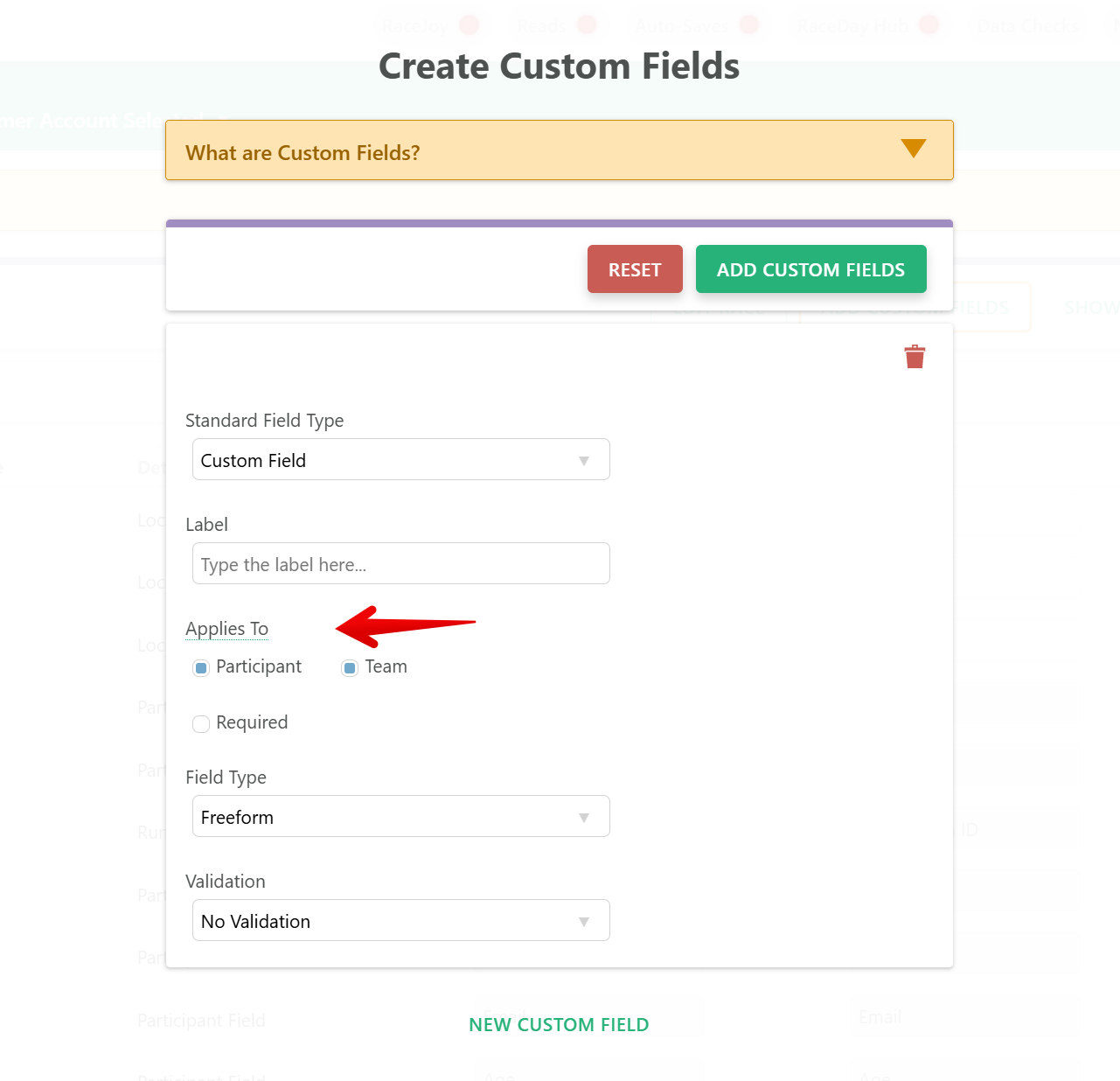
Custom Field Type
There are three options under Standard Field Type:
- Custom Field (most common)
- Emergency Contact Name
- Emergency Contact Phone

Label
The Label is a short description of what the field stores. For example, Category, Series Member, or Penalty Count.
Applies To
Use Applies To to control where this field's values are stored:
- Participant only: Values are stored on participants. The field is not available on teams.
- Team only: Values are stored on teams. Participants can still show the team's value on reports.
- Both: Values can be stored on participants and teams. A participant with no value of their own shows their team's value, and a team with no value of its own shows the first value from its member list.
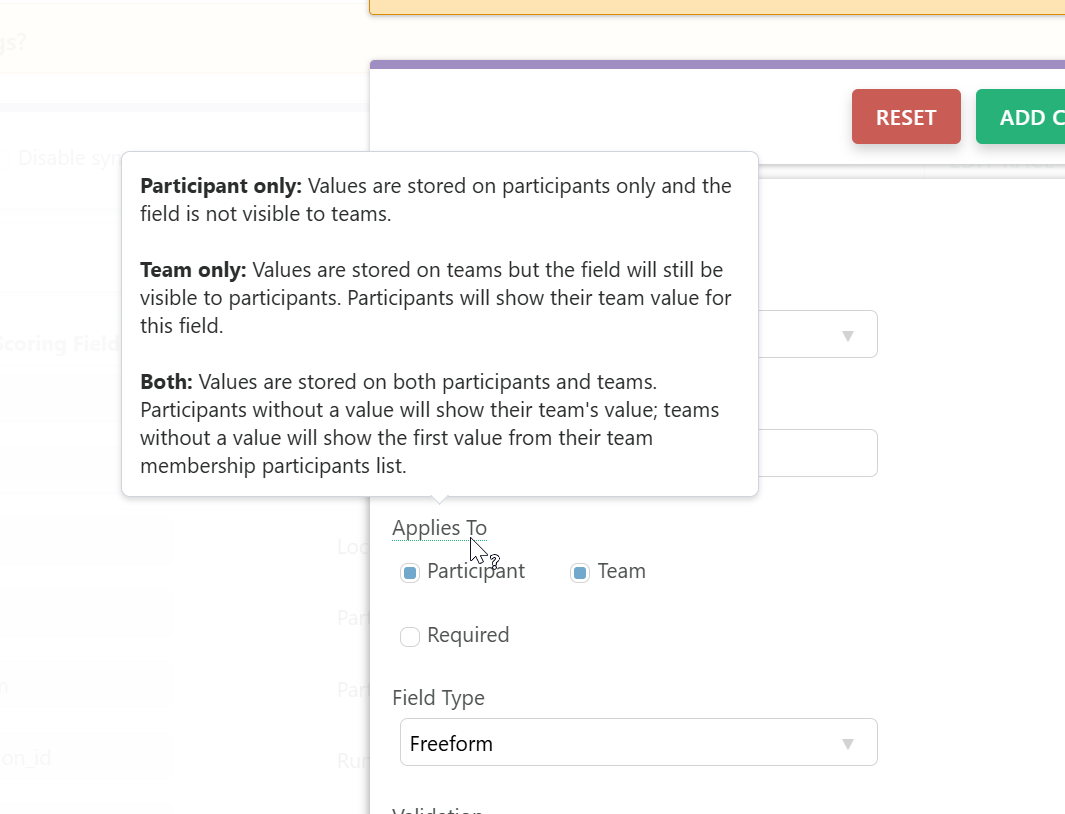
New custom fields have both Participant and Team checked. Existing fields stay Participant only until you change them. At least one box must stay checked, so unchecking the last one does nothing.
Removing Participant or Team from an existing field clears data. When you uncheck either box on a field you already created, RaceDay Scoring asks you to confirm, because existing values on that side are cleared once you save. Local races clear those values right away, and RunSignup races clear them on the next sync. Answer No if you are not sure.
Note: Applies To appears on custom fields you create in RaceDay Scoring. It is not available on custom questions that come from RunSignup, which stay participant answers.
Required
When Required is checked, you must enter a value when adding or editing a participant or team that this field applies to.
Field Type
Field Type controls how the value is entered:
- Freeform - Open-ended text, with optional checks such as phone number, email, or positive integer.
- Checkbox - Multiple options; more than one can be selected at a time.
- Radio - Multiple options; only one can be selected.
- Select - Like Radio, shown as a dropdown.
- Yes/No - Like Radio, with fixed Yes and No options.
- Time - A time value.
- Essay - A long text field.

Editing values when a field applies to both
On the participant or team edit screen, a field that is showing a value from somewhere else appears locked, and its tooltip tells you where that value came from. Unlock the field to copy that value onto the participant or team you are editing, then change it. Use the undo icon, or clear the field and save, to go back to the value it was showing before.
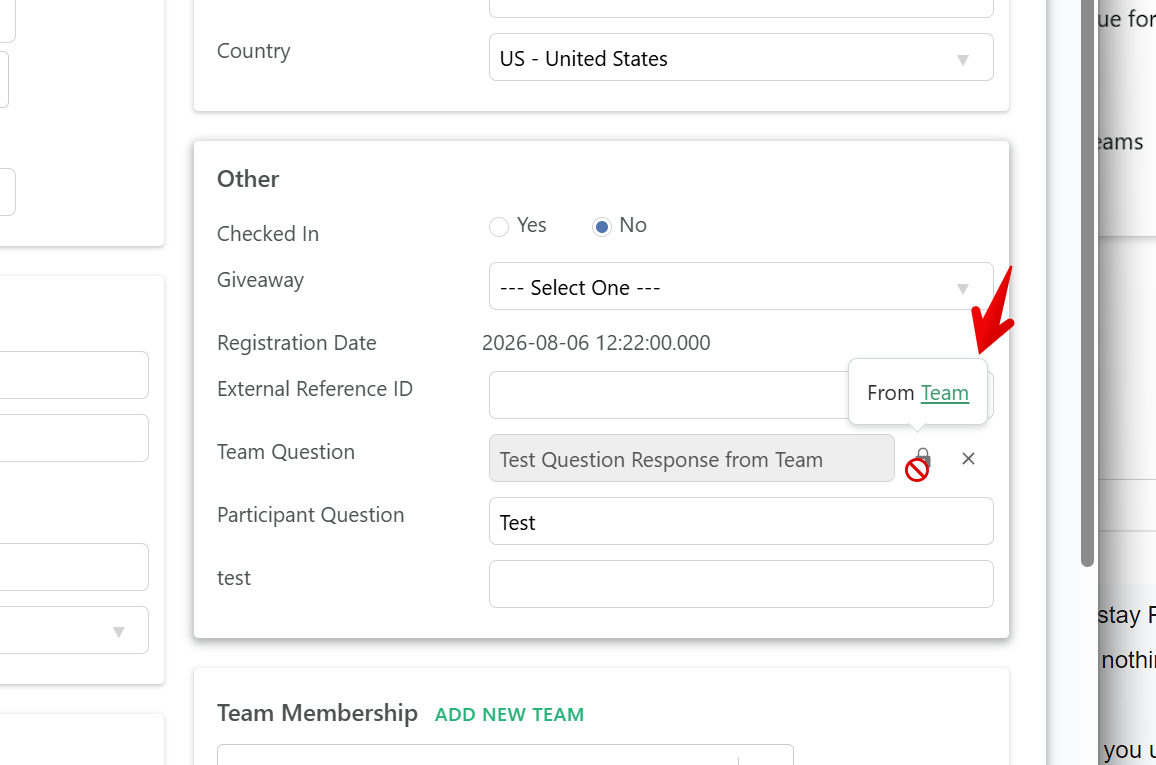
The undo icon flashes while a copied value is sitting in the field, so you have a clear reminder before you save a value onto a record that did not have one.
Reports and publishing
Custom fields appear on the participant or team Add/Edit screens based on Applies To. You can add them as columns on a report section. Local custom field values on teams can be included when you publish team reports to RunSignup.
Note: On teams, RunSignup custom questions may show a member's answer for display, but RaceDay Scoring does not store a separate team answer for those questions.