As your race winds down, you often need to know whether award bands are ready before you start the awards ceremony. Are all three deep age group slots filled? Is anyone still on course who could move into an award position?
RaceDay Scoring now includes an Awards tab in Race Statistics on the Dashboard. It shows this at a glance for age groups and top finisher categories across your scored events.
TABLE OF CONTENTS
- When to use this
- Before you start
- Open the Awards tab
- Read the summary banner
- Review each scored event
- Understand the category table
- Waiting On vs. displacement
- Events without start reads or splits
- Quick checklist before the ceremony
- Troubleshooting
- Previous workaround (manual report)
- Related articles
When to use this
Use the Awards tab when:
- A race director asks whether awards are ready
- You want to see which age groups or top finisher bands still need finishers
- You are waiting on slower bands before printing award reports or starting the ceremony
- You want to know if someone still on course could displace a current winner
Before you start
The awards summary is driven by your age group reports. Make sure you have:
- Age groups configured with the number of winners you award (for example, three deep)
- At least one age group report for each scored event you want to track
- Reports generated so winner counts are up to date
If a scored event has no age group reports yet, the Awards tab prompts you to create them in Report Builder.
If reports exist but counts look empty, use Rebuild Reports on that panel, or open Report Builder and generate the reports normally.
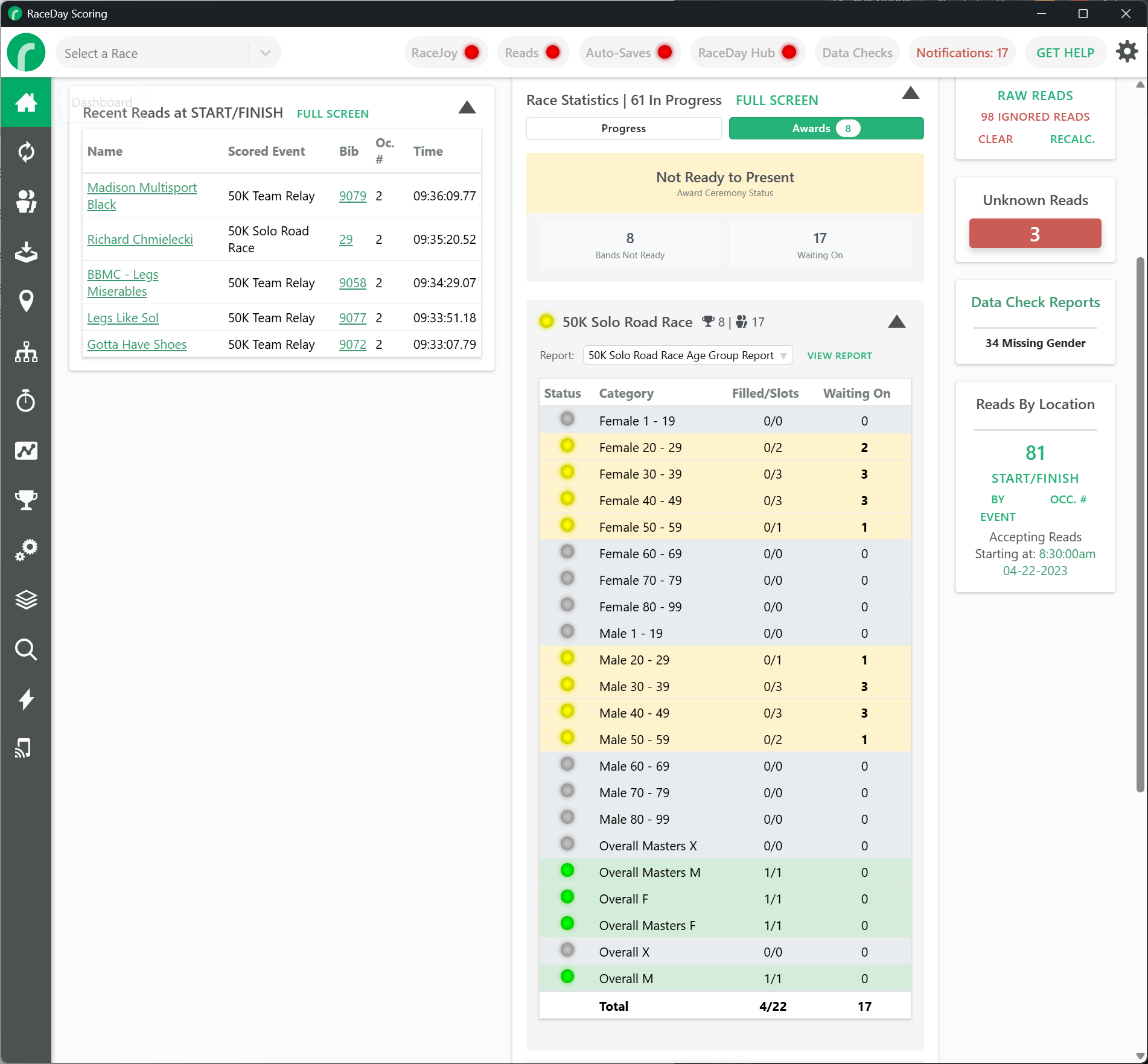
Open the Awards tab
- Open your race and go to the Dashboard.
- Find the Race Statistics panel (right column, below Scored Event Timers).
- Click the Awards tab at the top of the panel.
The Progress tab still shows overall participant counts. The Awards tab focuses on award readiness.
Tip: Click Full Screen in the Race Statistics header for a larger view, especially when you have multiple scored events.
Read the summary banner
At the top of the Awards tab, Award Ceremony Status shows whether the race is ready overall.
Ready to Present
All configured bands that can be presented are ready. You can proceed with the awards ceremony from a timing perspective.
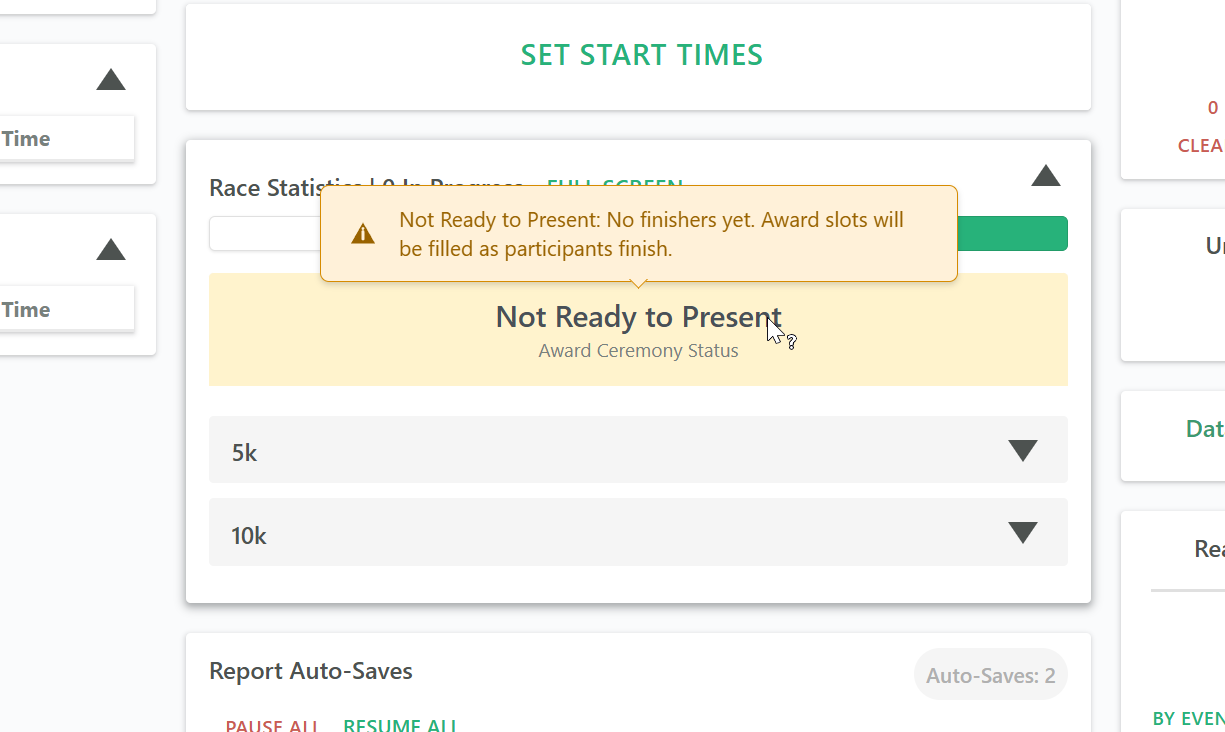
Not Ready to Present
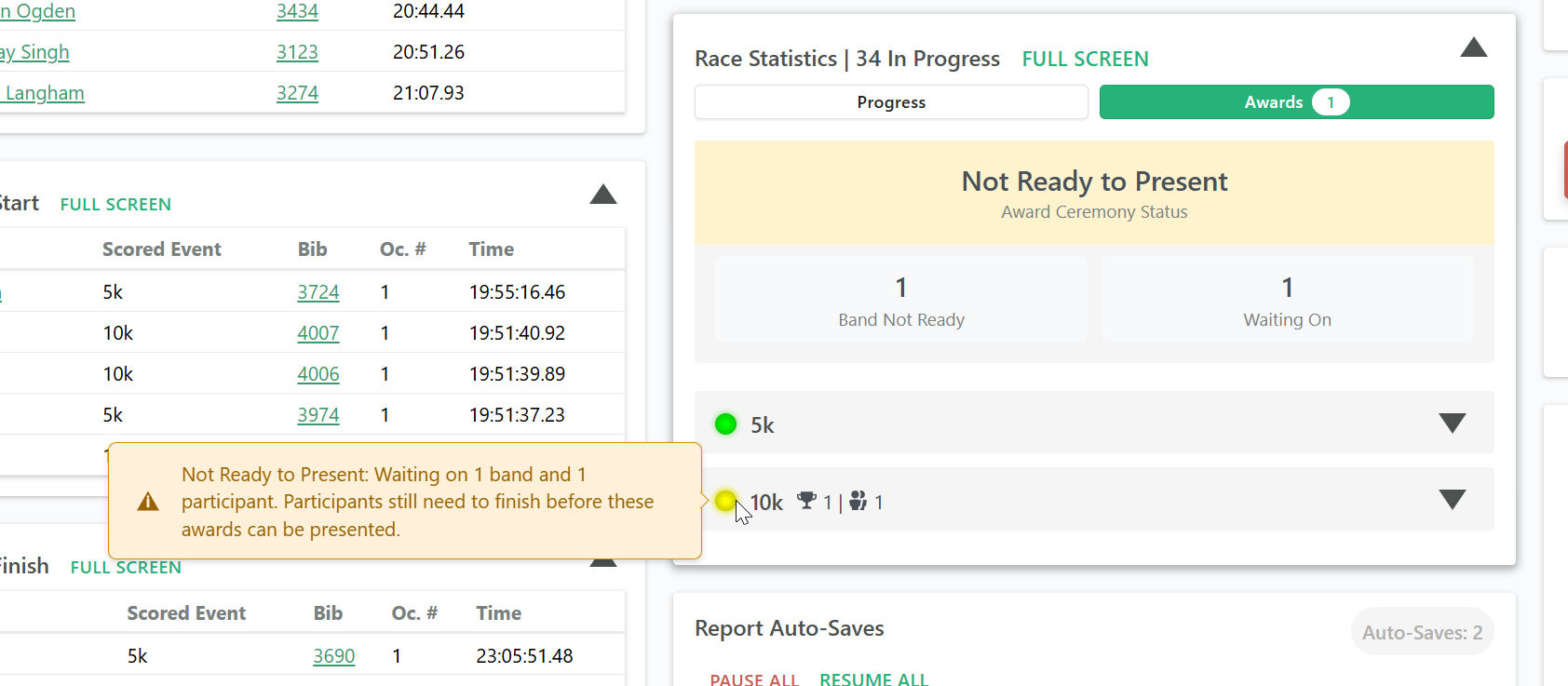
At least one band still needs finishers before you should present awards. The banner may show:
- Bands Not Ready: How many age group or top finisher bands are not ready yet
- Waiting On: How many participants still need to finish before open award slots can be filled
Hover over the yellow badge on the Awards tab label for a quick summary without opening the tab.
Review each scored event
Below the banner, each scored event has its own collapsible panel. Panels with bands still waiting open by default. The header shows a green or yellow status indicator, the scored event name, and counts for bands not ready and participants you are waiting on (when applicable).
Choose the report
If a scored event has more than one age group report, use the Report dropdown to pick which report drives the statistics. This matters when reports use different filters (for example, one report for standard age groups and another for a special category).
Click View Report to open the selected age group report for more detail.
Understand the category table
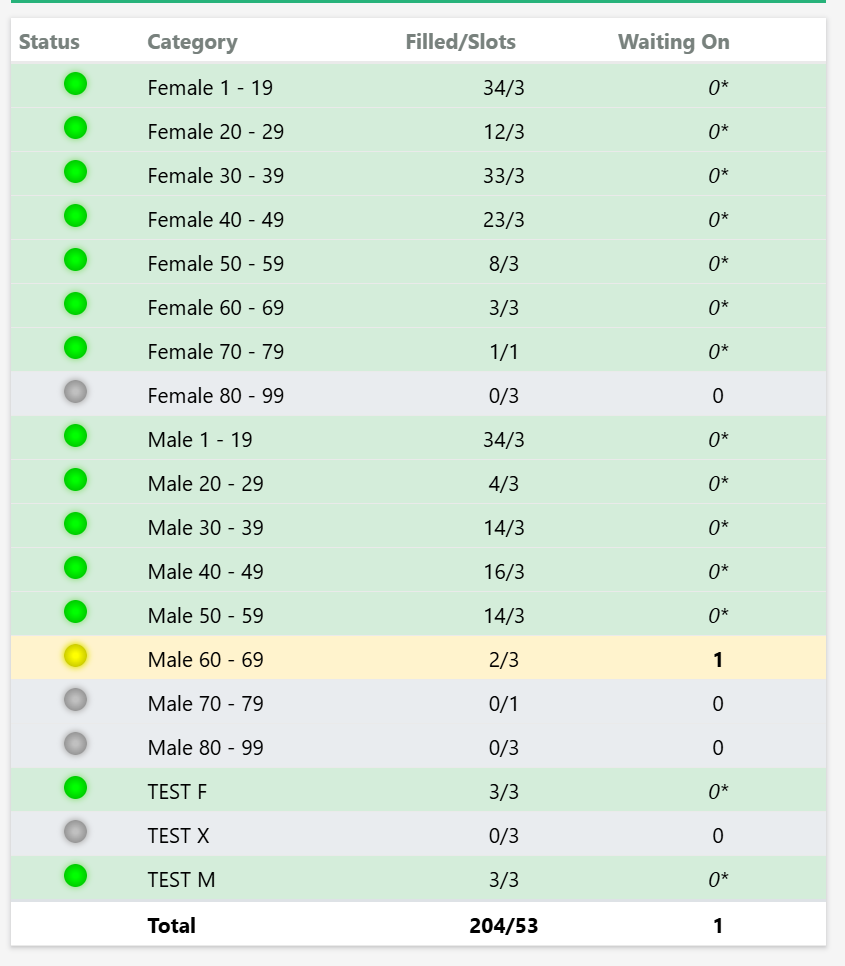
Each scored event table includes these columns:
- Status: Green, yellow, or gray indicator for that band
- Category: Age group name or top finisher category
- Filled/Slots: How many award slots are filled out of how many are available (for example, 2/3)
- Waiting On: How many participants still need to finish before this band's remaining slots can be filled
Status colors
- Green (Ready to Present): This band is ready for the awards ceremony. All fillable slots are filled, or remaining slots cannot be filled based on who is registered or still on course.
- Yellow (Not Ready to Present): Participants still need to finish before this band can be presented.
- Gray (No Awards Available): No results recorded yet for this band.
Hover over any status dot for a short explanation.
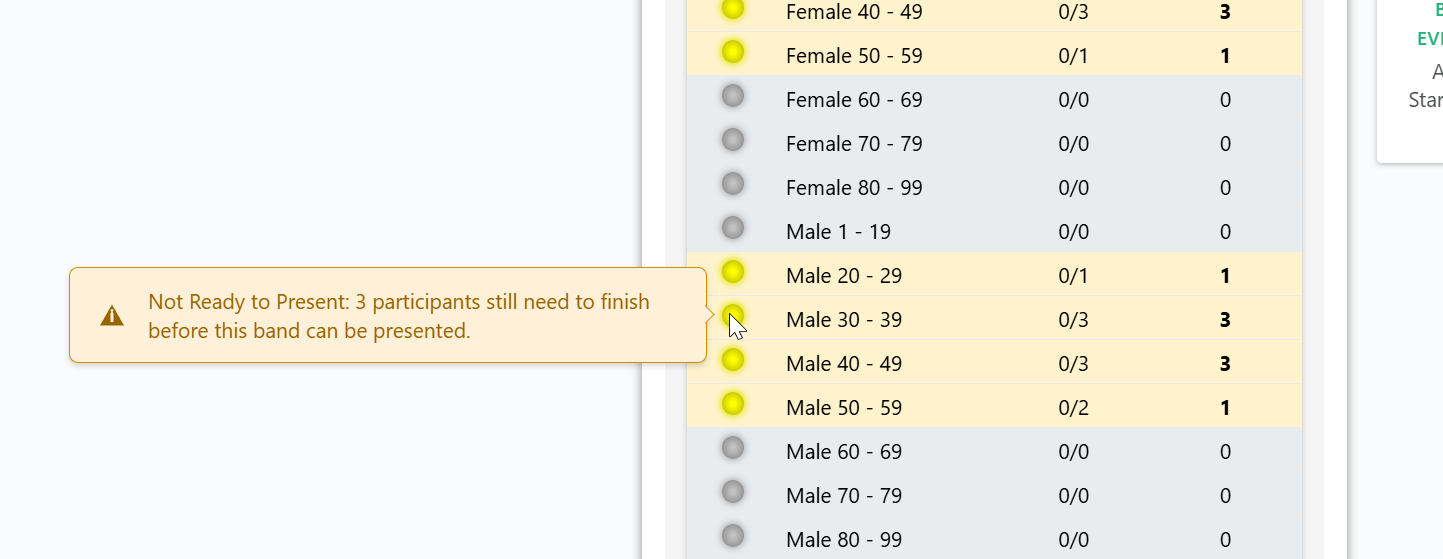
Waiting On vs. displacement
Waiting On is the number of finishers you still need to fill the remaining award slots in that band. For example, if you award three deep and one person has finished, Waiting On shows 2 until two more finishers are recorded.
When Waiting On is 0 but someone on course could still bump a current winner (based on chip time and start time), the cell may show 0*. Hover over the asterisk to see how many participants on course could still displace current winners.
Waiting On counts only the participants you need for open slots. More people may still be on course.
Events without start reads or splits
For scored events with no start read and no splits, RaceDay Scoring cannot track who is on course the same way. In those cases:
- The Waiting On column is hidden
- Readiness is based on who has finished and who is registered in each band
- A band can show Ready to Present when there are not enough registered participants left to fill the remaining slots
Quick checklist before the ceremony
- Open Dashboard, then Race Statistics, then Awards
- Confirm the summary banner shows Ready to Present, or review which bands are still yellow
- Expand any scored event panels that still show waiting counts
- Check Filled/Slots and Waiting On for the bands you plan to present
- Look for 0* if you want to know whether late finishers could change podium positions
Troubleshooting
No age group reports found for this scored event
Create age group reports for that scored event in Report Builder, then return to the Awards tab.
Age group reports exist but winner counts are not populated
Click Rebuild Reports on that scored event panel, or generate the reports from Report Builder.
Counts look wrong for one event
Confirm the correct report is selected in the Report dropdown. Filters on that age group report (such as registration event or custom subsets) affect which participants are included in the statistics.
The Awards tab badge keeps showing a number
The yellow badge on the Awards tab means at least one band or participant is still being waited on. Open the tab to see which scored events and categories need attention.
Previous workaround (manual report)
Before v5.0.80, timers built a custom age group report with Show Award Winners Only and non-finisher filters to approximate this view. That approach still works, but the Awards tab is the recommended way to check award readiness during an event.
For report setup details, see Show Award Winners Only in Age Group Reports.