Exporting Reads from Agee Timing
- Ensure a backup database folder is set in Settings
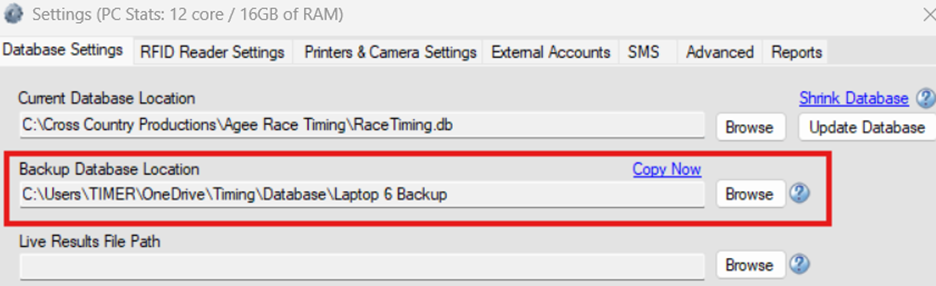
- Open a race, right-click the participant screen, and create a new report. The output folder selection doesn't matter; Agee saves live exports to the backup folder only.
- Uncheck the header columns option above the fields selection.
- Create an RDS export report, selecting only "bib#" and "All Reads".
- Check "export live while reading" and "append is the option".
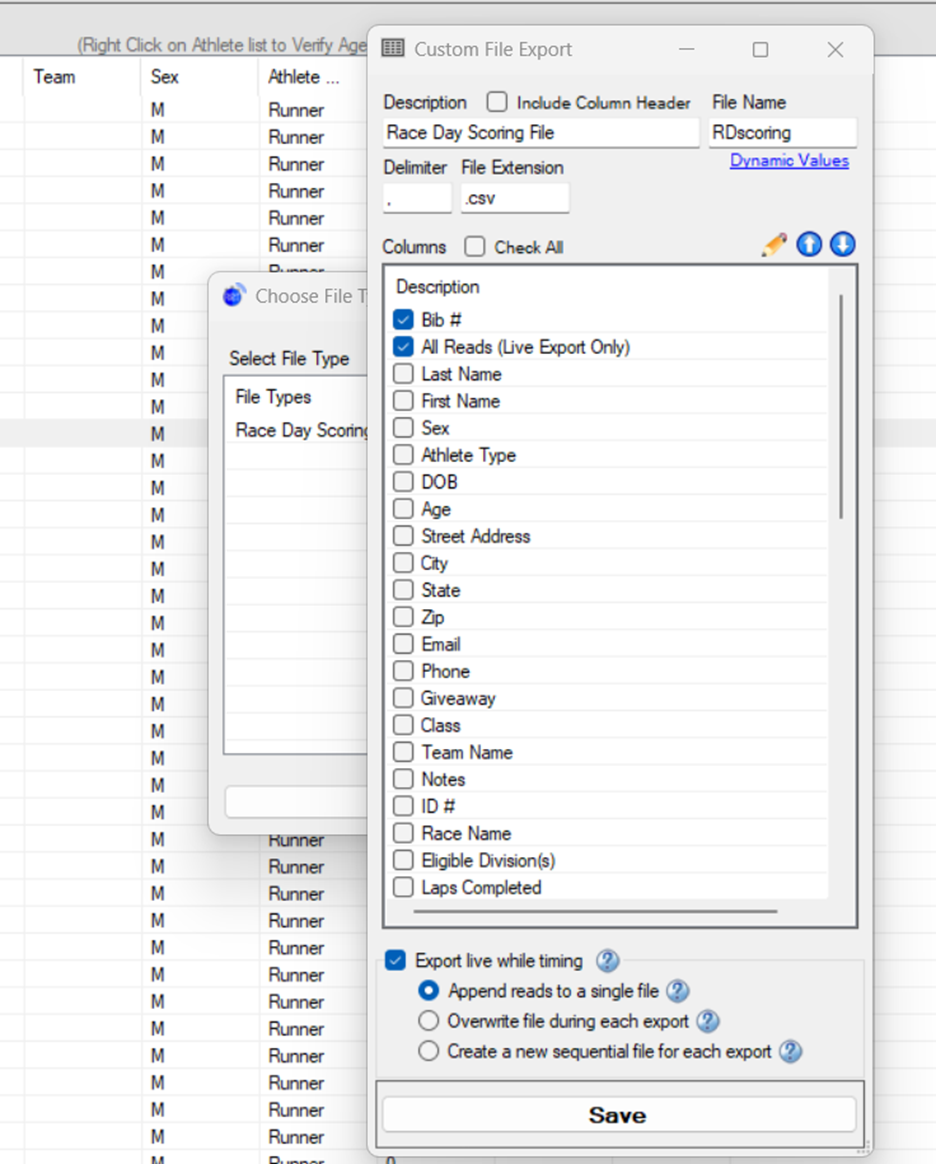
- Save.
Setting Up a Stream in RaceDay Scoring
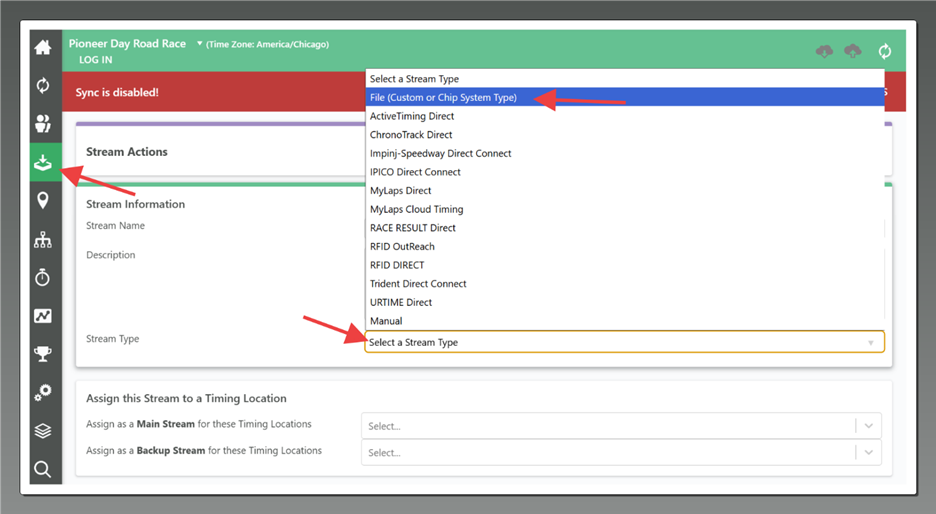
- Go to Streams -> Add a Stream
- Name your stream (this is a reference for you)
- Under Stream Type, select “File (Custom of Chip System Type)
- Under File Type, select “Agee Timing File”
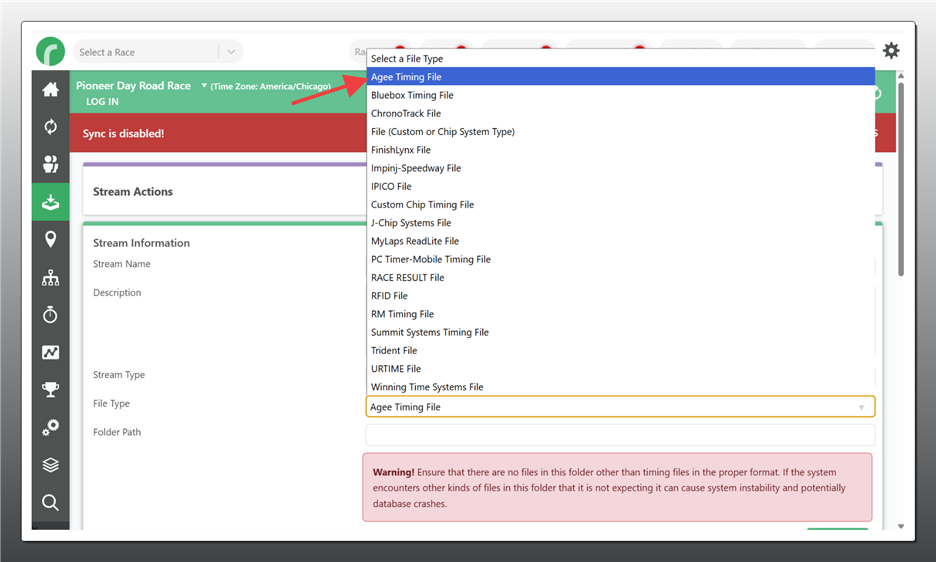
- Select the appropriate Folder Path. This should match Backup Database location set up in Agee Timing.
- Make sure the extension matches what you have selected in Agee (txt or csv)
Bringing Reads into RaceDay Scoring
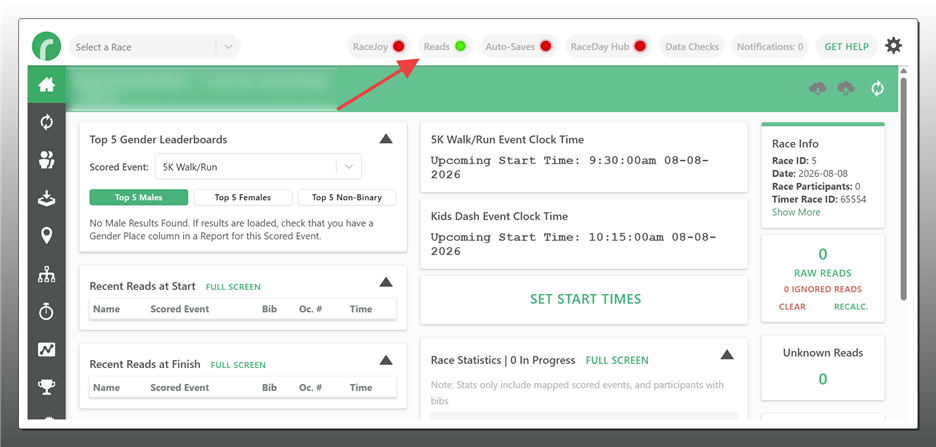
- In RaceDay Scoring, make sure the Reads connector is on
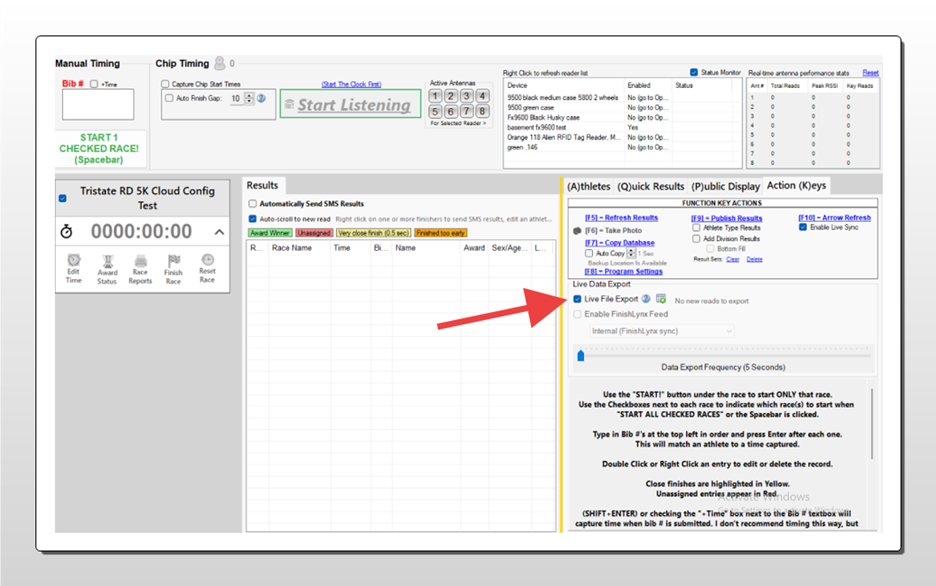
- In Agee Timing, go to the Time Race screen and click on Action Keys tab
- Make sure Live File Export is selected
- Either connect to a reader to scan a few tags, or manually enter a bib and time entry in Agee Timing.
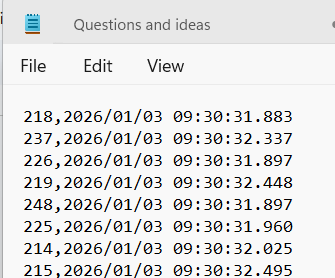
- Go to your backup folder and open the RaceDay Scoring export csv you created and view for bib number, ISODATE line items if you need to confirm reads are being saved.
- Confirm that these reads are seen in RaceDay Scoring via the Raw Reads view for the stream you set up.