A result set is the container your results live in at RunSignup. Each one has its own URL, its own settings, and its own position in the list on your race’s results page.
RaceDay Scoring creates and updates result sets for you when you set up an Auto-Save. The Result Set Management screen lets you work with result sets that already exist at RunSignup, including ones that no report publishes to anymore. You can also edit result sets at RunSignup itself, but this screen is faster and shows you which sets your current scoring file is actually using.
Reports warns you when a result set at RunSignup has no auto-save. Those leftovers still appear on the race’s public results page.
When to use this screen
- Act on the Unused RunSignup Result Sets warning on Reports.
- Clean up leftover or duplicate result sets, which is common on a renewed race or after you rebuild reports partway through setup.
- Rename a result set. Renaming a report in RaceDay Scoring does not rename the result set that report already created at RunSignup.
- Change the order your result sets appear in on the RunSignup results page.
- Show only your team results when a report publishes both. Team scoring for more than one team type needs a separate report per team type, and each one creates its own individual result set at RunSignup.
- Hide a result set from the public while you finish reviewing it, or mark it as preliminary.
- Hide team standings for a division you are scoring but not publishing.
- Clear test results out of a set before race day without deleting the set or breaking its URL.
- Add your timing company’s name and website to your results.
- Adjust team result set display settings such as decimals, distance units, and scoring depth.
Open Result Set Management
- Open your race and go to Reports.
- Click Result Set Management.
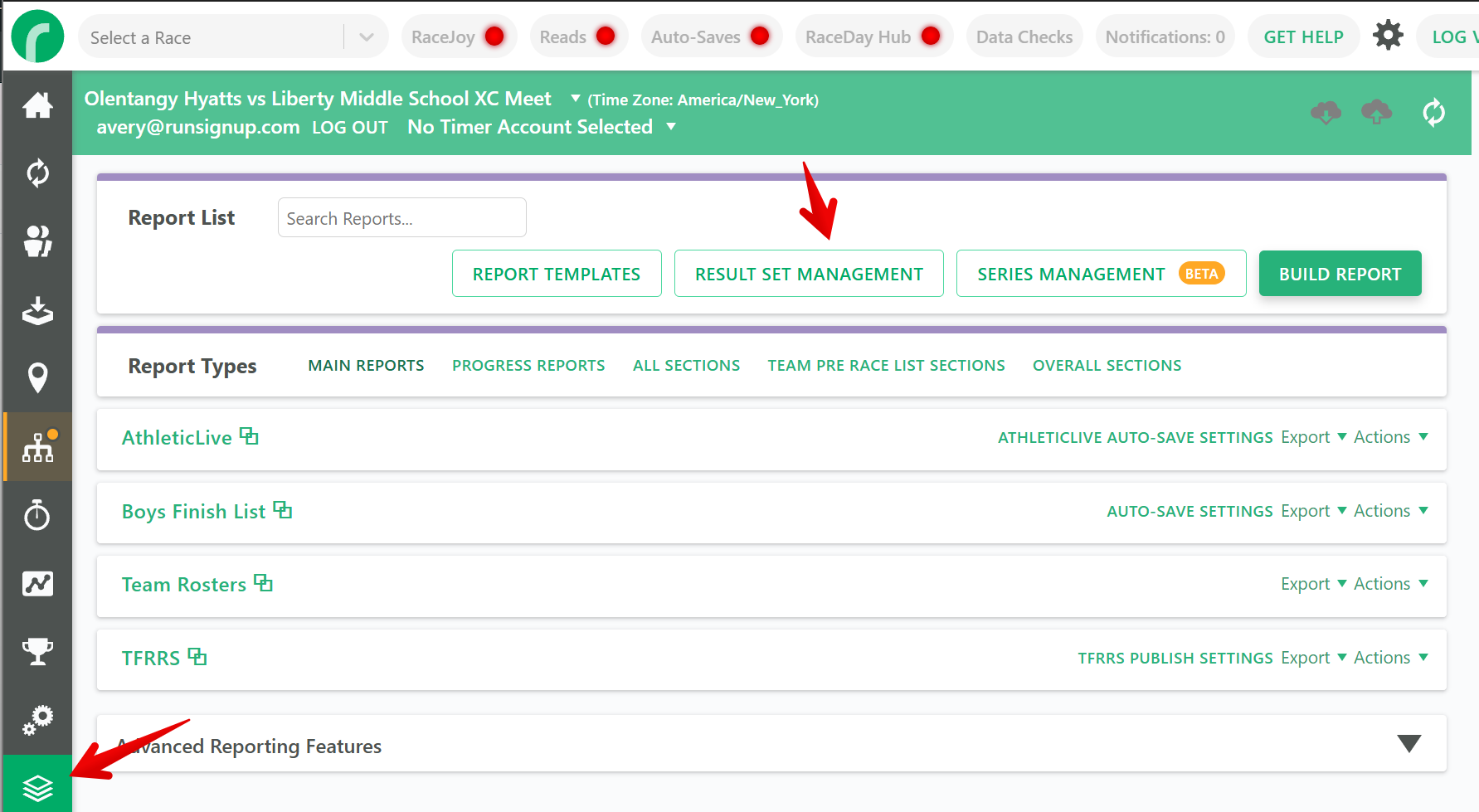
The button appears only for races connected to RunSignup, and it stays disabled until you are logged in to RunSignup. The screen has two tabs: Individual Result Sets and Team Result Sets.
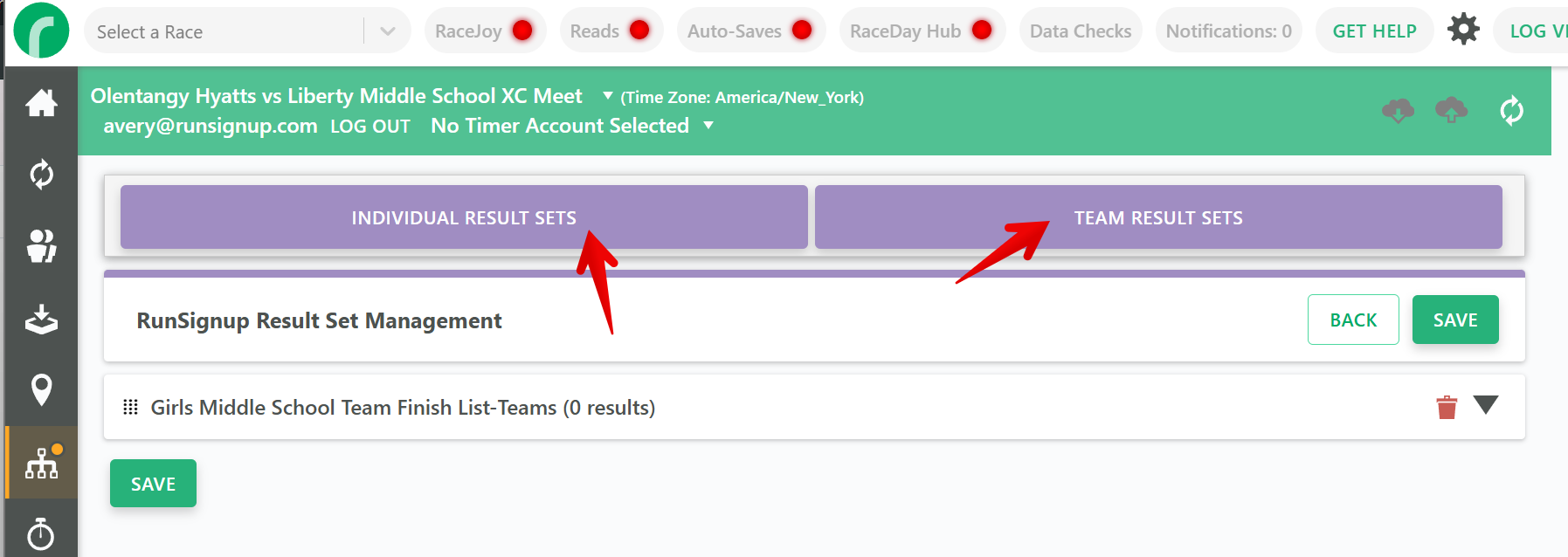
Each result set is a collapsed panel. Click the heading to expand it. On the Individual tab, the heading also shows how many results the set currently holds, which is a quick way to check whether your results reached RunSignup at all. A set showing 0 results has not received anything, even if the report looks full in RaceDay Scoring.
Unused result sets
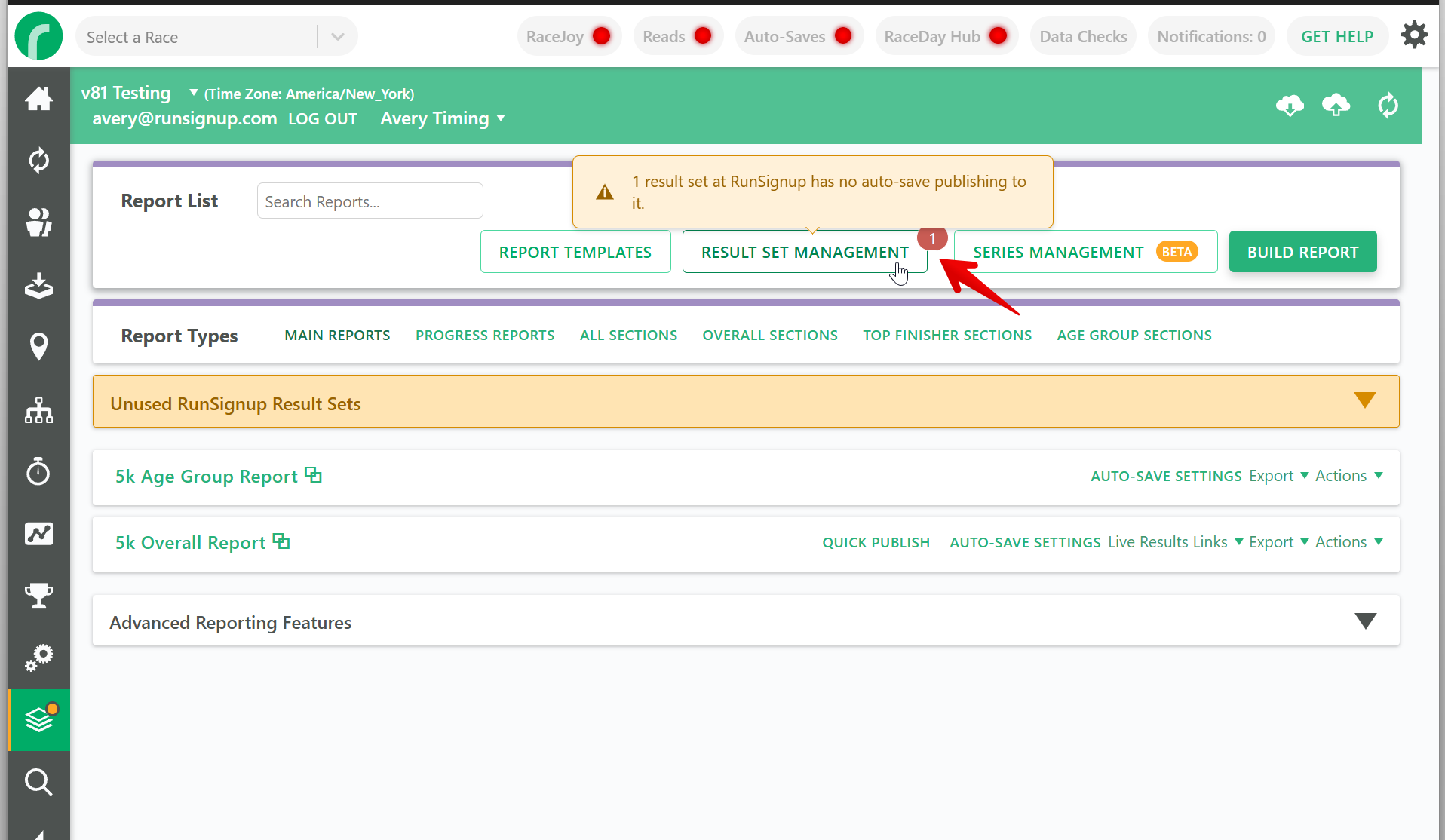
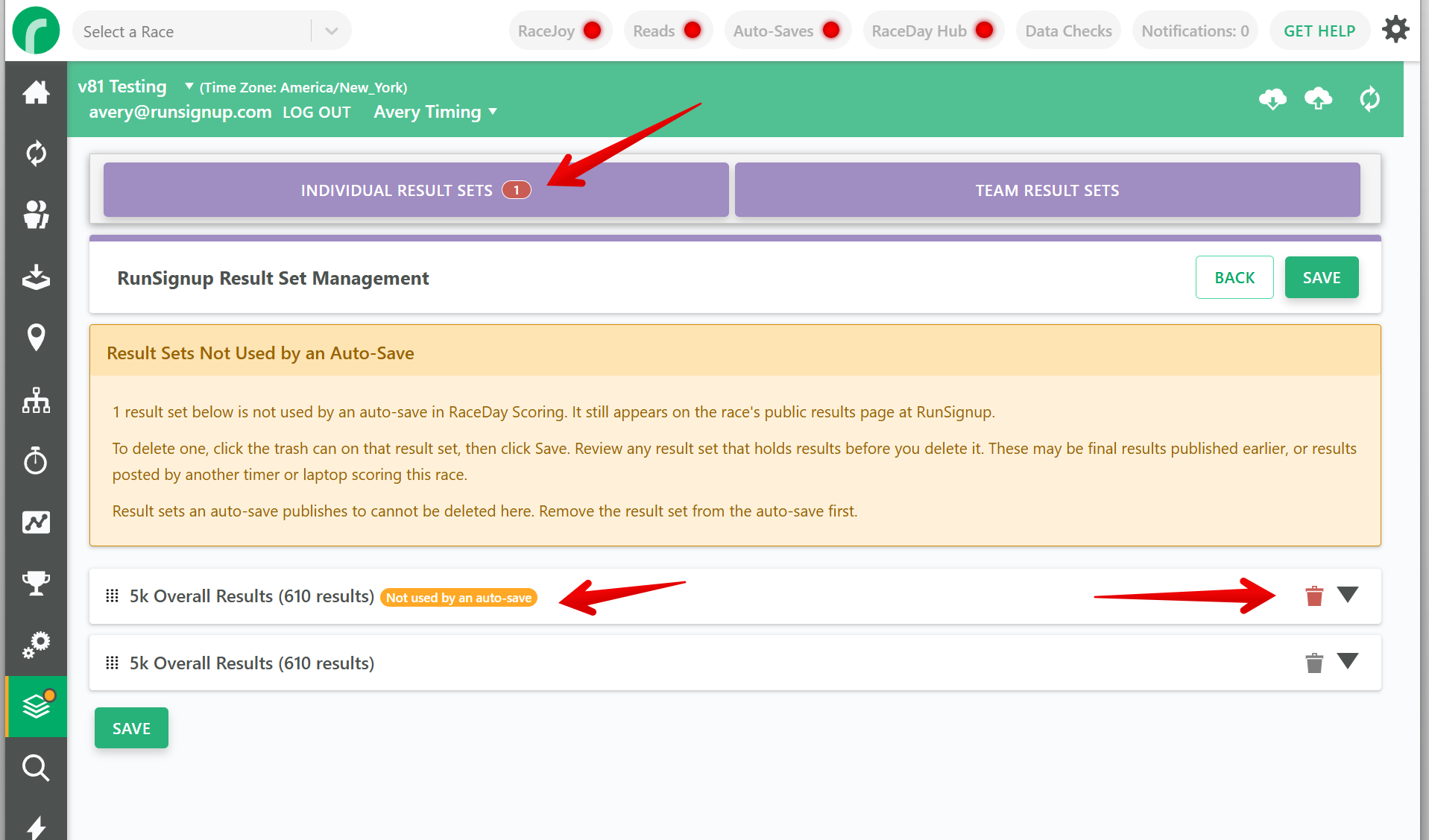
If a result set at RunSignup has no auto-save in RaceDay Scoring, it still appears on the race’s public results page. RaceDay Scoring now warns you about those leftovers.
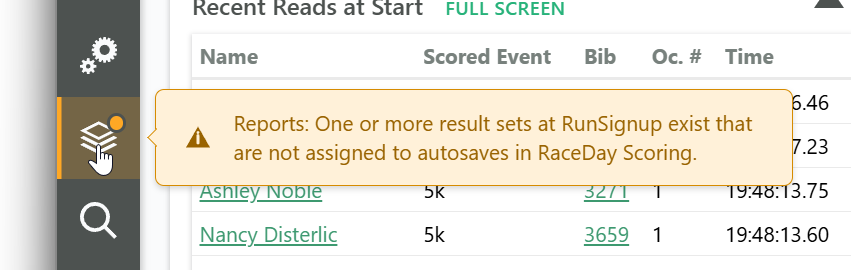
- Reports in the left nav shows a warning: One or more result sets at RunSignup exist that are not assigned to autosaves in RaceDay Scoring.
- The report list includes a Unused RunSignup Result Sets panel, collapsed by default.
- Empty individual sets can be deleted.
- Individual sets that still hold results, and unused team result sets, ask you to review first. They may be final results published earlier, or results posted by another timer or laptop scoring this race.
- Result Set Management and Team Result Set Management show a count on the Individual Result Sets and Team Result Sets tabs. Each screen also includes a Result Sets Not Used by an Auto-Save note that marks the unused sets in the list.
Use those links to open the matching screen, then delete or hide only the sets you are sure about. A greyed out trash can still means the set is in use. Do not delete a set that still holds live or final results until you have checked it.
Which screen controls which setting
Some settings exist both here and in a report’s Auto-Save Settings. When you create a New Result Set, Auto-Save Settings is where you first set Public Results, Preliminary Results, Hide Splits In Results, and Hide Event Names. When you edit an existing auto-save, Auto-Save Settings shows the current values from the result set at RunSignup. Saving Auto-Save Settings writes what you see on that form, so a change made here or at RunSignup is not reset to a default.
Individual result sets
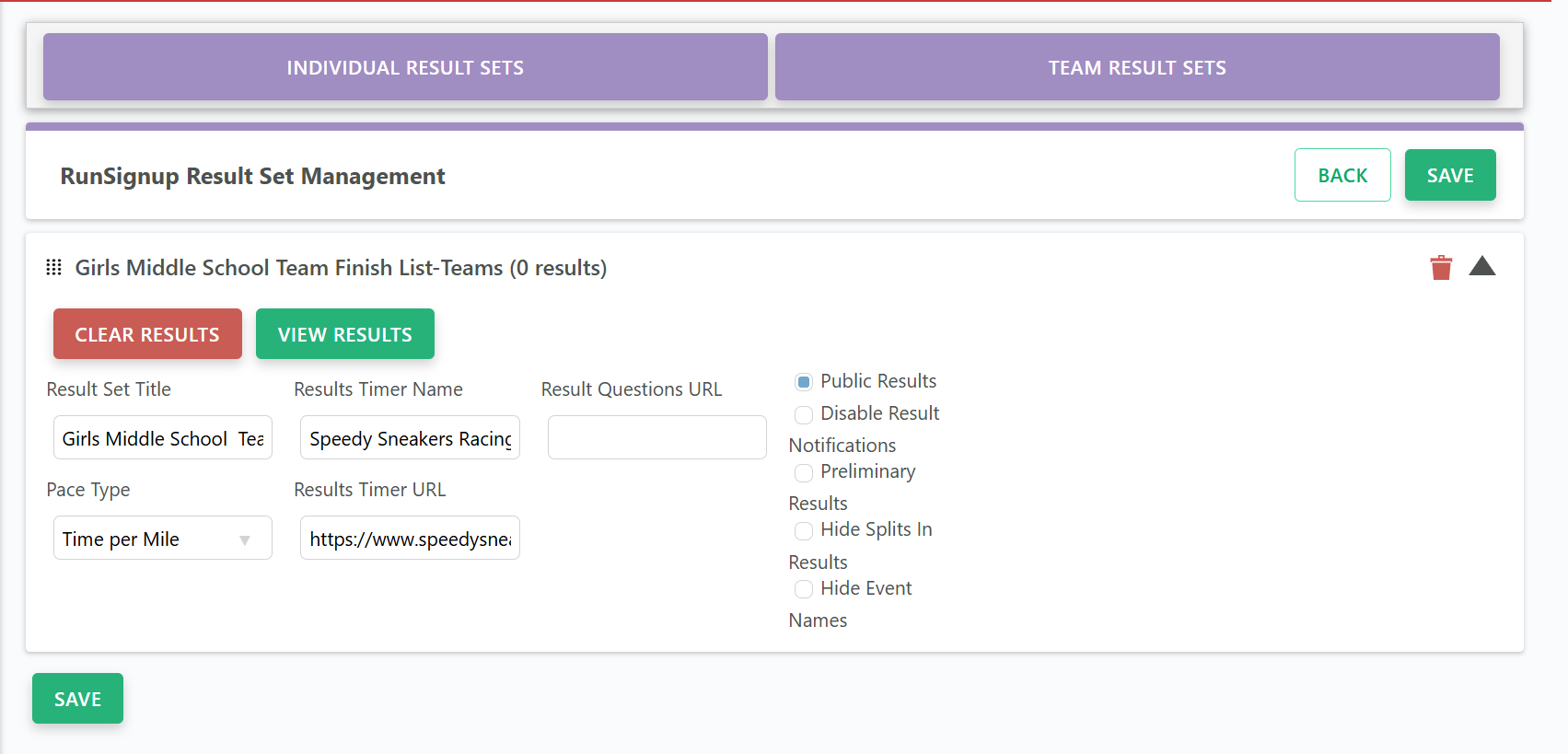
Auto-Save Settings includes Public Results, Preliminary Results, Hide Splits In Results, and Hide Event Names, along with Result Set Title, Pace Type, Results Timer Name, Results Timer URL, Result Questions URL, and Disable Result Notifications. Edit those on either screen. Reopening Auto-Save Settings shows what is currently on the result set.
Team result sets
Public Results and Preliminary Results on a team result set are kept when you save Auto-Save Settings. You still set them here or at RunSignup; they are not on the auto-save form. Saving Auto-Save Settings can still rewrite other Team tab fields, including the display order, Show Elevation Gain, and Display Under/Over Team Size Scores.
Num. Scored Finishers and Num. Counted Finishers come back from the Team Scoring Depth and displacement settings on your Scored Event, so change those in Scored Events > Team Scoring rather than here. Edits you make on the Team tab are best treated as temporary for any team result set a report is still auto-saving to, except Public Results and Preliminary Results, which stay as you left them.
Individual Result Set settings
- Result Set Title - The name shown at RunSignup, including on your race’s results overview tiles. Renaming a report in RaceDay Scoring does not rename a result set that report already created, so change the name here. Titles longer than 125 characters are shortened when saved.
- Pace Type - Do Not Display, Time per Mile, Miles per Hour, Time per KM, or KM per Hour.
- Results Timer Name and Results Timer URL - Credits your timing company on the results page and links back to your site.
- Result Questions URL - Where participants go with questions about their results.
- Public Results - Uncheck to hide the set from the public while you review it, or to hide an individual result set that is associated with a team result set. You can also set this in Auto-Save Settings when you create the result set. When you edit that auto-save, the checkbox shows the current value from the result set.
- Disable Result Notifications - Stops RunSignup from sending result notifications for this set.
- Preliminary Results - Marks results as unofficial at RunSignup.
- Hide Splits In Results - Keeps split times out of the published results.
- Hide Event Names - Hides the event name that would otherwise appear with the result set title, so you do not get titles like 5k Overall Results (5k). For a new result set, this is on by default. Existing sets keep whatever is already at RunSignup until you change them.
Two buttons act on the set directly. View Results opens the set at RunSignup in your browser, which is the quickest way to confirm what is actually in a set before you change or remove it. Clear Results empties it.
Show team results without the extra individual lists
Team scoring for more than one team type needs its own report per team type, because team types with different scoring criteria cannot share one Overall w/Teams report. Each of those reports creates its own individual result set at RunSignup, which leaves you with several individual lists when you only wanted one.
To show only the individual list you want:
- Go to Reports and click Result Set Management.
- Expand each individual result set you want out of public view and uncheck Public Results.
- Click Save.
Your team result sets stay public. If you later edit that report’s Auto-Save Settings, Public Results on those individual sets comes from the result set, so it stays unchecked unless you turn it back on.
Team Result Set settings
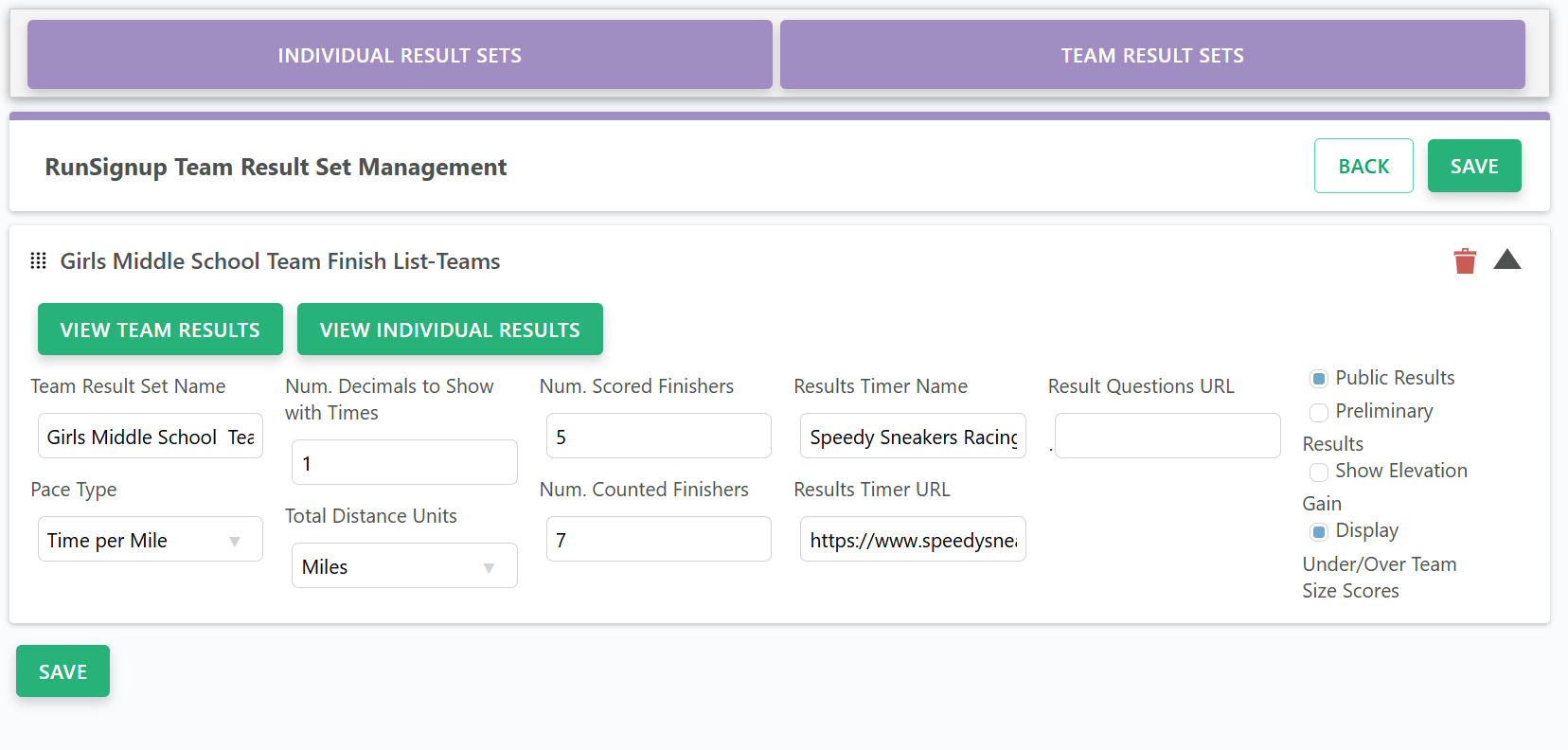
The Team tab includes Pace Type, Results Timer Name and URL, Result Questions URL, Public Results, and Preliminary Results, plus these:
- Team Result Set Name - Required. Keep it to 125 characters or less, because longer names are shortened when saved.
- Num. Decimals to Show with Times - Between 0 and 3.
- Total Distance Units - None, KM, Meters, Miles, Yards, or Feet.
- Num. Scored Finishers - How many finishers per team add up to the team score. This matches your Team Scoring Depth, for example 5 in a typical cross country meet.
- Num. Counted Finishers - How far down each team’s finishers count for displacement, for example 7. This cannot be lower than Num. Scored Finishers.
- Show Elevation Gain - Adds an elevation gain column.
- Display Under/Over Team Size Scores - Shows scores for teams that are under or over the required size.
Public Results works the same way on this tab. Uncheck it to keep a team result set out of public view, for example when you are scoring team standings for a division that the race does not want published. Saving Auto-Save Settings does not turn Public Results back on.
View Team Results opens the team results at RunSignup. View Individual Results opens the individual set the team results are built from, or gives you a list to choose from when the team set draws on more than one.
Reorder result sets
Drag a panel by its heading to move it. The order on this screen becomes the order your result sets appear in at RunSignup. Click Save when you are done.
Your order on the Individual tab sticks. On the Team tab, saving a report’s Auto-Save Settings sets the order from that report’s priority instead, so reorder team result sets after you finish changing auto-saves.
Clear results from a set
Expand the set and click Clear Results, then confirm. This removes every result from the set but keeps the set and its URL intact, which makes it the safe way to wipe test data before race day.
Clear Results happens immediately. It does not wait for you to click Save, and you cannot undo it.
Why you have extra result sets
Extra result sets at RunSignup are common, and they are usually clutter rather than a problem. They build up because:
- You published or auto-saved a report earlier and later stopped using it. The result set it created stays at RunSignup.
- You removed an auto-save and chose Leave Results at RSU.
- Team or lap settings deleted a report that was auto-saving to RunSignup, and you chose Leave Results at RSU. The old result set stays on the public page.
- A team result set remains when you delete only some of the individual result sets it uses. It is removed when every individual result set it uses is deleted together.
Only the sets tied to your current auto-saves are doing any work. The unused warning on Reports, and the counts on Result Set Management, show you which sets those leftovers are.
When team or lap settings delete a report
When team or lap settings delete reports that auto-save to RunSignup, RaceDay Scoring asks what to do with those result sets.
- A dialog titled Remove RunSignup Result Set and Divisions Setup? lists each result set. Each one starts checked. The dialog says these result sets are associated to reports that have been deleted.
- Click Remove Results from RSU to delete the checked sets at RunSignup.
- Click Leave Results at RSU to keep them on the public results page.
Turning on team scoring is the common case. The Overall report is replaced by a Team Finisher List, and this dialog is where you remove the old Overall result set or leave it beside the new one. The same dialog appears when a relay or cross country rebuild deletes reports that were auto-saving to RunSignup.
Delete a result set
Look at the trash can icon before anything else. A greyed out trash can means the set is linked to a report that is currently auto-saving to RunSignup, and RaceDay Scoring shows “Result set is in use, remove from report autosave first.” That is the set feeding your live results, so it is the one to keep. The sets you can delete are the leftovers.
To delete one, click the delete icon on the panel. The panel turns red to show it is marked for deletion. Nothing is removed until you click Save, and RaceDay Scoring then asks you to confirm each set by name before deleting it.
The confirm step also says “Divisions and team result sets associated with these result sets will also be deleted.” RaceDay Scoring deletes the divisions for each individual result set you remove. A team result set is removed only when every individual result set it uses is part of that same delete.
Deleting a team result set removes that Team Results tab at RunSignup. Deleting any result set also breaks links that point directly at that set’s URL, so check whether the race director has shared or embedded that link first.
If you are not certain a set is a leftover, hide it instead of deleting it. Click View Results to see what is in it, then uncheck Public Results to take it out of public view. Hiding is reversible and deleting is not, and timers have deleted the wrong set and lost their live team results.
If you do need to remove a set that is in use, remove the RunSignup Results stream from that report’s Auto-Save Settings first, then come back and delete the set.
Save your changes
Click Save to send your changes to RunSignup. A confirmation appears when the save succeeds. If you try to leave the screen with unsaved changes, RaceDay Scoring warns you first.
The Individual and Team tabs save separately. Save one tab before switching to the other.