Standard Results reports can only include data from one Scored Event at a time.
You cannot put every event into one ranked list with split times, as split definitions vary by event.
A Data Check can list everyone in one table, because Data Checks run across Scored Events. Use this when you want to scan where people are on course without opening a separate report for each event.
Create the check
The results table always includes a Name column. You do not need to add First Name or Last Name.
- Open Data Actions in the sidebar, then select the Data Check tab. You can also open Data Checks from the toolbar.
- Click New Data Check Report.
- In Data Check Report Name, enter a name such as Race Progress.
- Under Participant Fields to Show, set Fields to Displayto:
- Scored Event
- Bib
- Last Completed Segment
- Last Completed Segment Time
- Last Segment Finish Time of Day
- No. of Segments Completed
- Race Progress
- Leave Standard Participant Search Filters empty if you want everyone. To show only people still on course, click Filter twice:
- Did Not Start == No
- Did Not Finish == Yes
- Click Search. Then click Save.
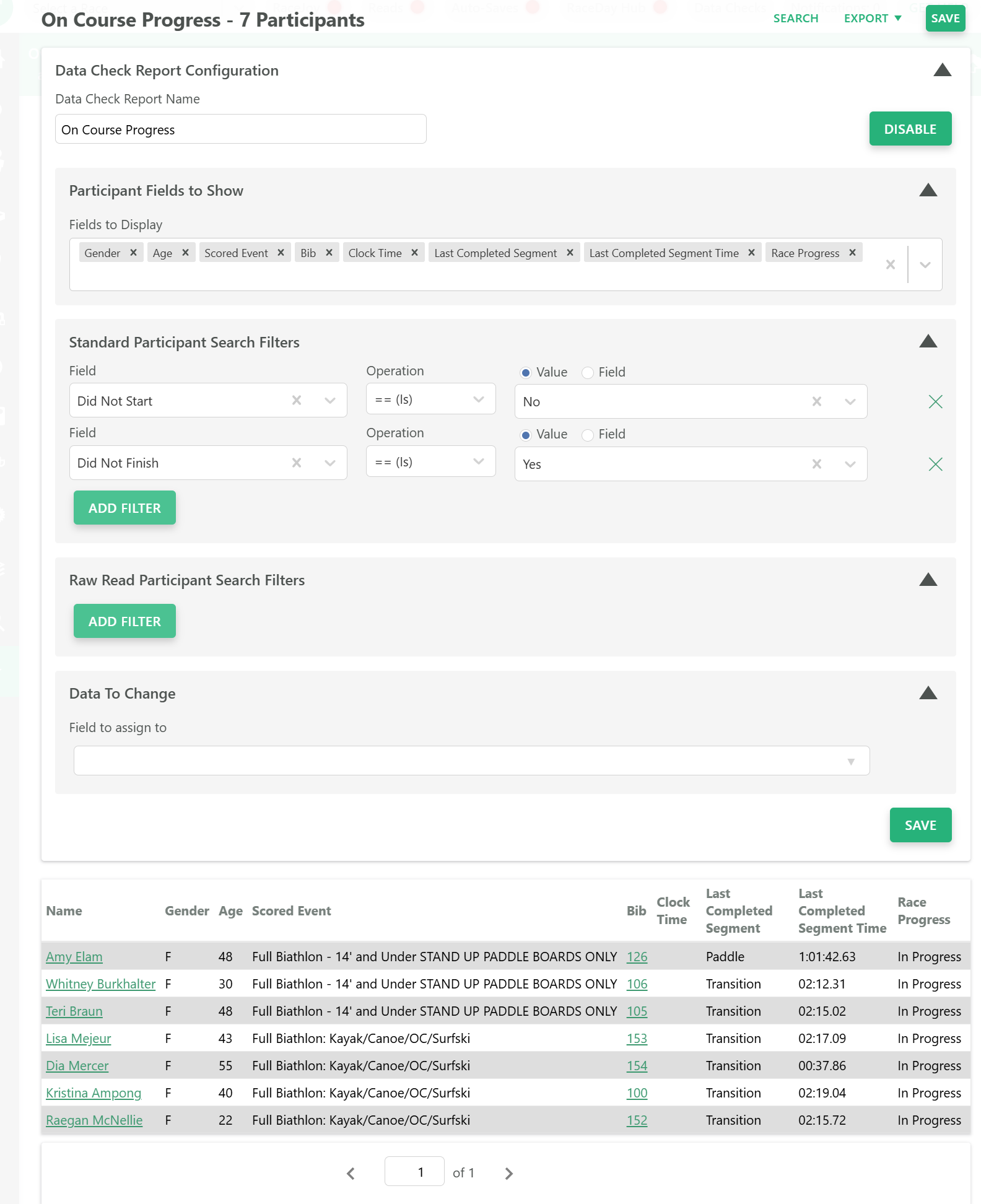
Race Progress is a status: Did Not Start, In Progress, Finished, Disqualified, or Dropped. Last Completed Segment is the column that shows where they are on course.
Sort and export
The results table does not sort when you click a column header. Use Export, then CSV, and sort in a spreadsheet by Last Completed Segment and Last Completed Segment Time.
Notes
- This is not a ranked Overall. Places and full split columns still belong on each event’s Overall or In Progress report.
- Relay members appear as individuals, which is useful for course monitoring.
- Do not combine different-distance registration events into one Scored Event just to get a single list.