Marker Reads are sent to RaceDay Scoring via a Stream. Identifying marker reads varies by hardware, so how a read reaches RaceDay Scoring isn't covered here. A common use is a gunshot or start signal sent as a Marker Read; you can map that occurrence to a Scored Event's Actual Start Time or a Corral's Start Time instead of typing the time in by hand.
Mapping markers to Scored Events and Corrals
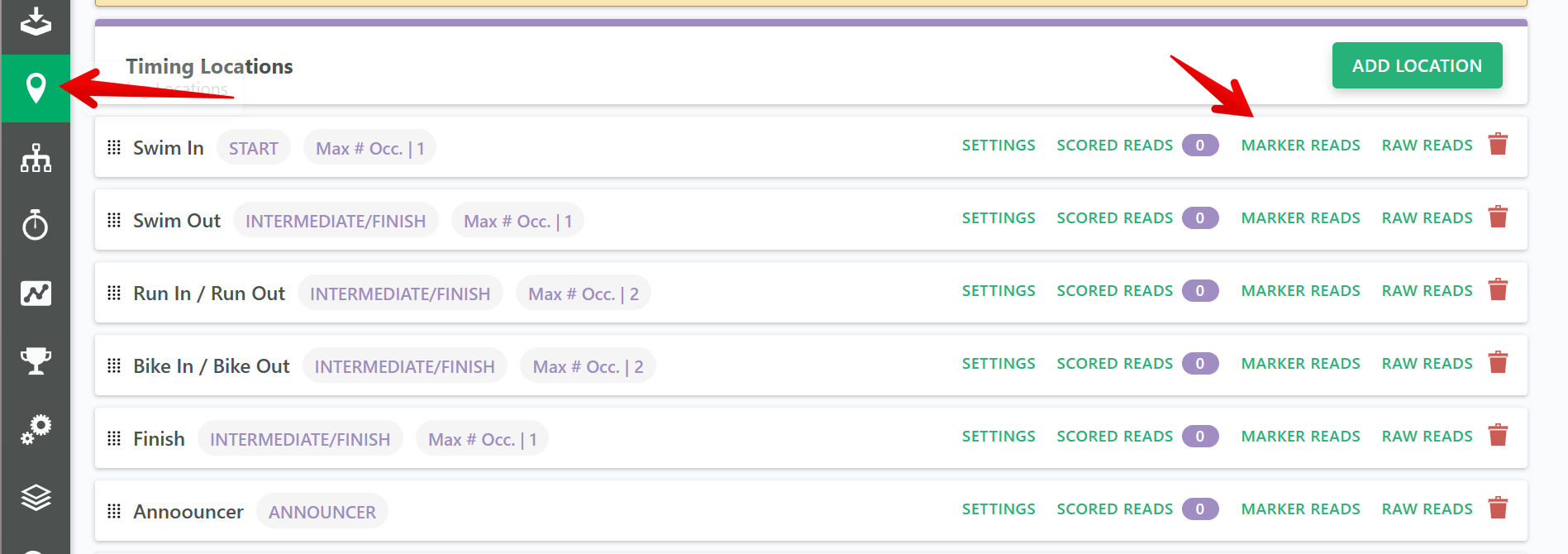
Before mapping, confirm your Markers are already coming in: on the Timing Locations tab, open Marker Reads for the location receiving them, and check the Marker Reads table for occurrences.
The Marker Reads screen has two tables side by side:
- Marker Reads - every marker occurrence received, with its Occurrence number and Timestamp.
- Mapping to Start Times - your current mappings from a marker occurrence to a Scored Event or Corral.
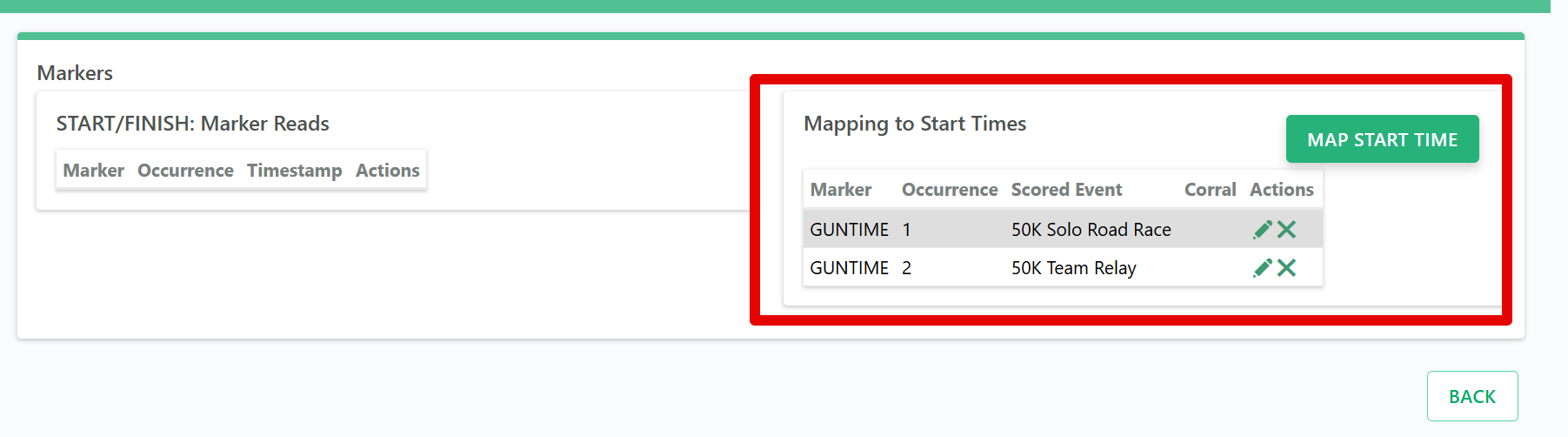
To create a new mapping, click Map Start Time above the Mapping to Start Times table. To change an existing mapping, click the pencil icon on that row.
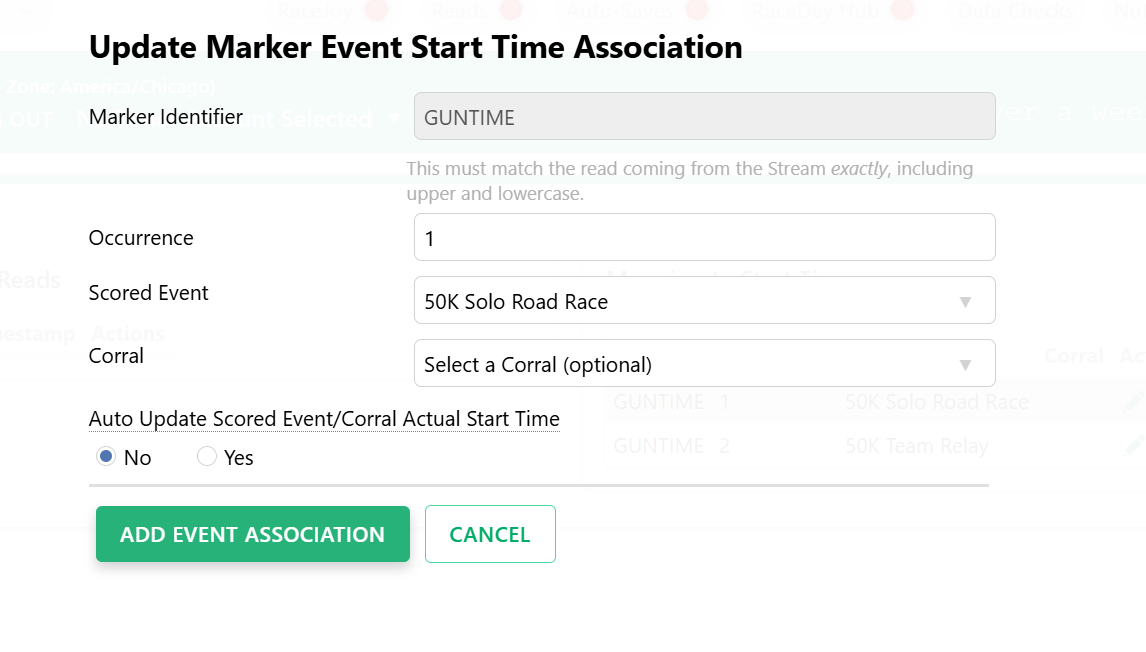
In the mapping dialog, set:
- Occurrence - which occurrence of the marker to use. Markers arrive in the order your hardware sends them, which may not match the order you need if you tested the hardware before the race; adjust the Occurrence number to match the correct one.
- Scored Event and/or Corral - which event or corral this mapping applies to. A single marker can map to multiple Scored Events or Corrals, but each Scored Event or Corral can only have one marker mapping.
- Auto Update Scored Event/Corral Actual Start Time - Yes or No. Existing start times are never overwritten either way; this only controls what happens when a mapped marker comes in for an event or corral that doesn't have a start time yet (see below).
Click Add Event Association to save.
What happens when a mapped marker read comes in
- If the Scored Event or Corral already has a start time set, RaceDay Scoring never overwrites it. Clear the existing start time first if you want the marker to set a new one.
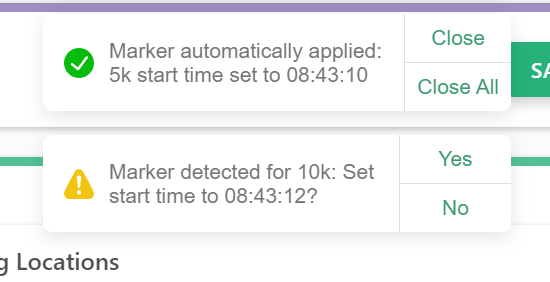
- If Auto Update is set to No (the default), you'll see a prompt asking whether to set the start time to the marker's timestamp; choose Yes to apply it.
- If Auto Update is set to Yes, the start time is set automatically as soon as the marker comes in, and you'll see a confirmation toast.
Setting a start time directly from a Scored Event or Corral
If gunshot markers have already come in, you can skip the Timing Locations screen entirely. On the Scored Events setup page or the Corrals setup page, click Select from Marker next to the start time field to choose a marker occurrence and apply its timestamp directly.
Notes
- The marker identifier must match the read coming from the Stream exactly, including uppercase and lowercase.
- For Corrals, the start time field is labeled Start Time, not Actual Start Time. If a Corral has a start time set but one or more of its Scored Events don't, set the Actual Start Time on the Scored Events page too. Corral start times override Scored Event actual start times when calculating Clock times.