Sometimes a race has several registration events that should appear in one report section, but those events start at different times. A common example is awarding the top boys and girls across several mile races that each have their own start.
The only way to have multiple registration events in one report section is to include those registration events in the same Scored Event. Everything else flows from there. If you select several Scored Events in the report builder instead, you get a separate section for each Scored Event, not one combined section.
Because the registration events start at different times, you then create a Corral for each start time. After that, you assign participants to those Corrals based on their registration event.
Only combine registration events that run the same distance on the same course. A Scored Event has one distance, one start location, and one finish location.
Step 1: Include the registration events in one Scored Event
- Open Scored Events.
- Pick one Scored Event to keep. Set Scored Event Name to what you want shown on the report, such as 1 Mile.
- Under Included Registration Events, check each registration event you want to combine. A registration event can only belong to one Scored Event, so checking it here removes it from the Scored Event it was on before.
- Confirm Event Distance, Start Timing Location, and Finish Timing Location.
- Set Actual Start Time. Anyone not assigned to a Corral uses this time.
- Click the trash can on each Scored Event that no longer has any registration events.
- Click Save.
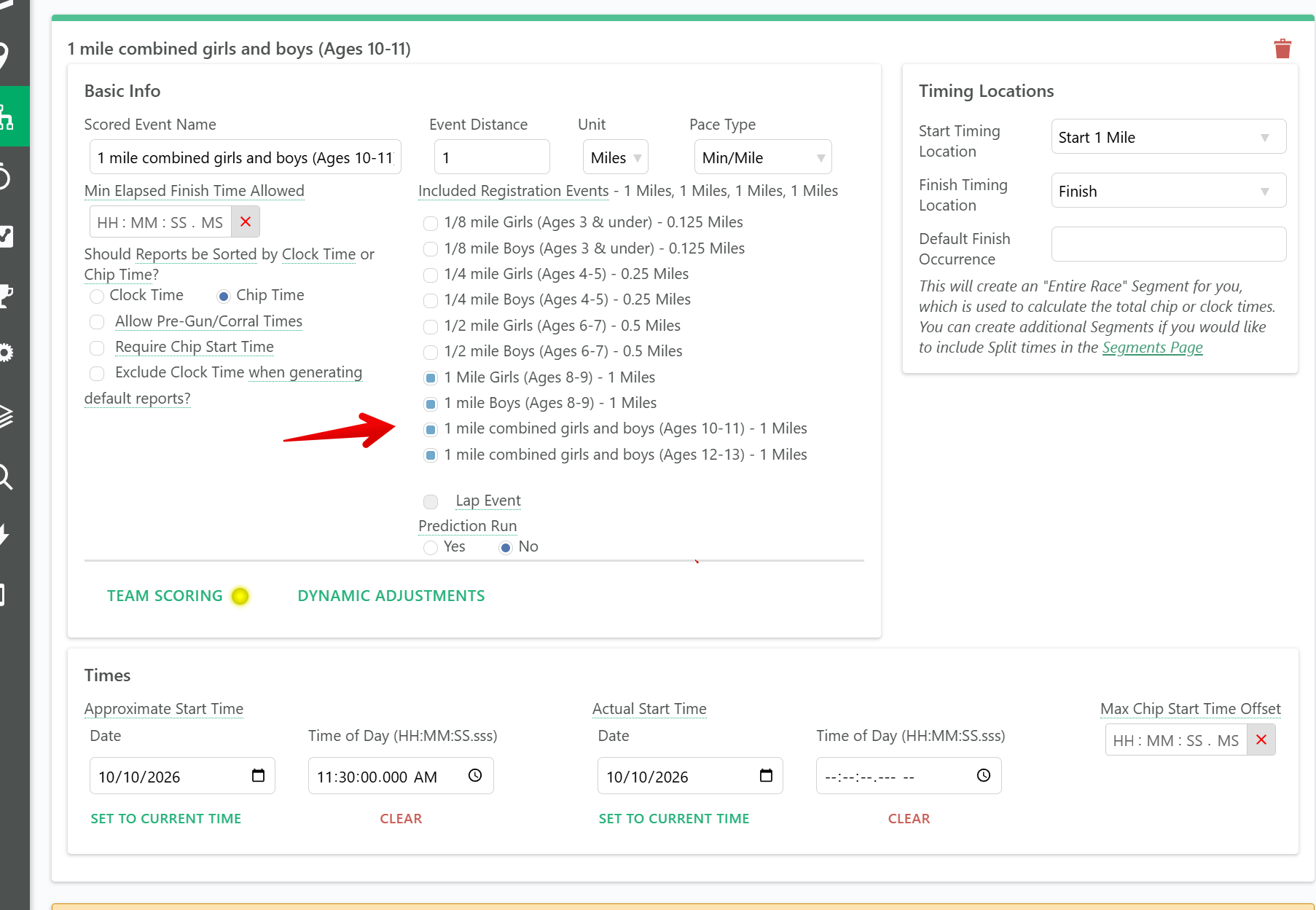
Deleting a Scored Event also deletes its reports, age groups, and top finisher categories. Build your report after this step.
Step 2: Create a Corral for each start time
- Open Corrals and click Manually add a Corral.
- Enter a Corral Name, such as Girls 8–9.
- Set Start Timing Location to the same start used by the Scored Event.
- Set Start Time to when that group starts.
- Click Save Corrals.
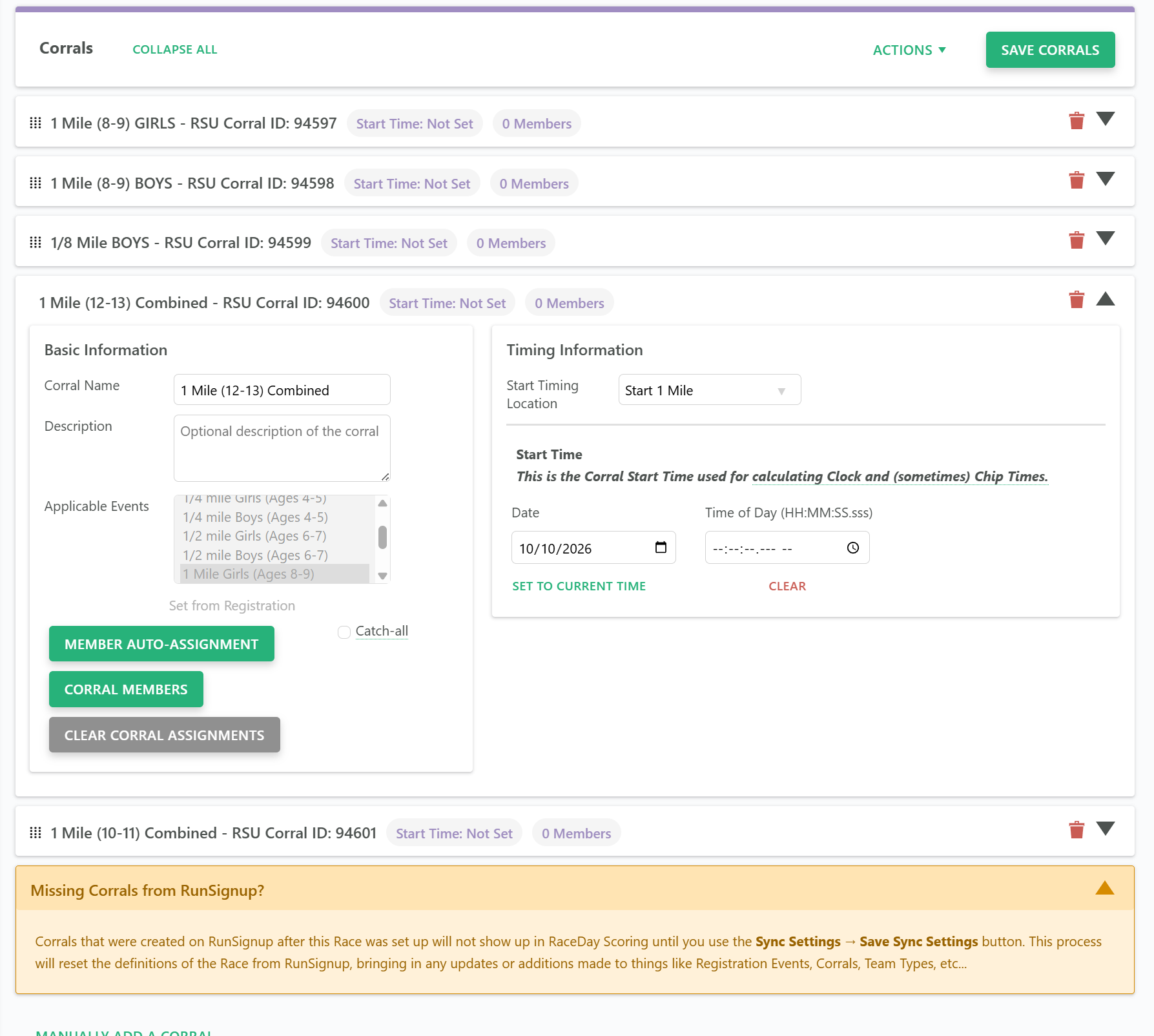
Repeat for each start time. Registration events that start at the same time can share a Corral.
Step 3: Assign participants to Corrals by registration event
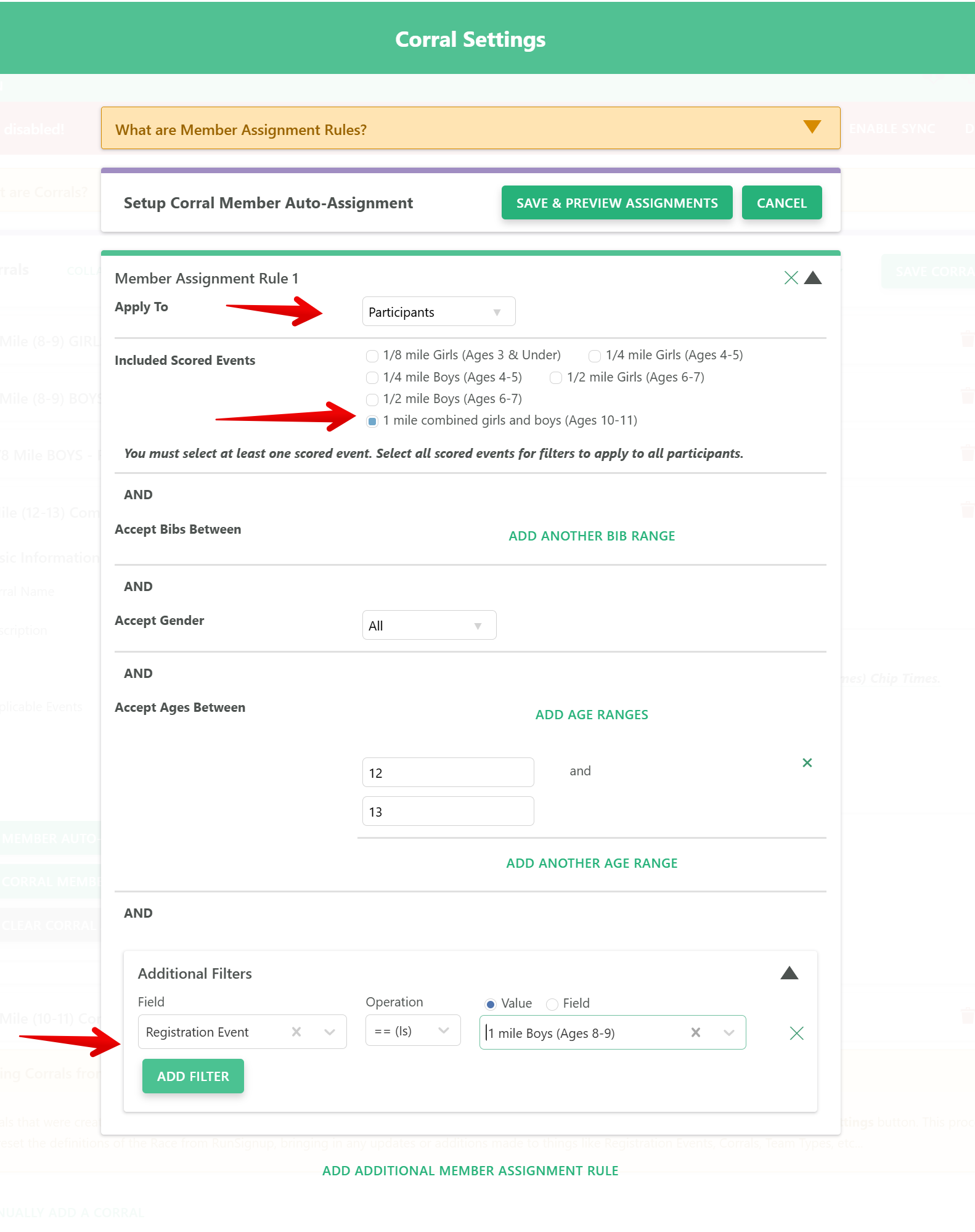
- On the Corral, click Member Auto-Assignment.
- Set Apply To to Participants.
- Under Included Scored Events, check the Scored Event you combined in Step 1.
- Click Add Filter. Set Field to Registration Event, Operation to == (Is), and choose the registration event.
- If more than one registration event uses this Corral, choose In (Is One of These) and select each one. If that option is not listed, click Add Additional Member Assignment Rule and add a rule for each registration event.
- Click Save & Preview Assignments, choose Assign all included participants and teams, then click Continue.
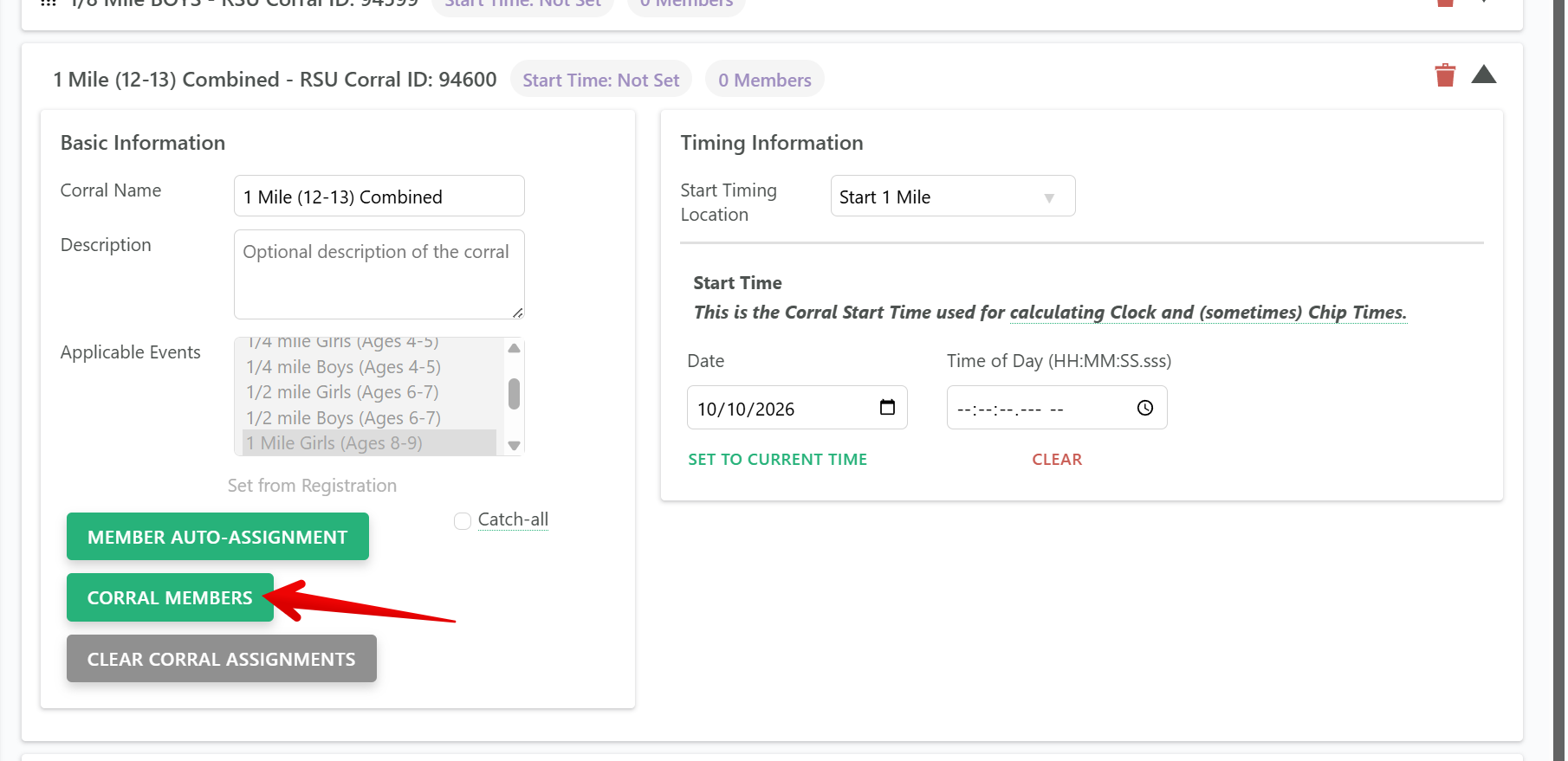
Open Corral Members to confirm each Corral has the right participants. More detail: Assign Members to Corrals.
Step 4: Build the report
- Open Reports and create a new report, or edit an existing one.
- Under Events to Include, select the Scored Event you combined in Step 1.
- Add an Overall Section. This section includes participants from every registration event in that Scored Event.
- For separate boys and girls sections, add an Overall Section for each. Open Filters & Sorts, click Add Participant Scoring Filter, and set Field to Gender, Operation to == (Is), and Value to Male or Female. A Scoring Filter recalculates Place within that section.
- To show one registration event on its own, use the same filter steps with Field set to Registration Event.
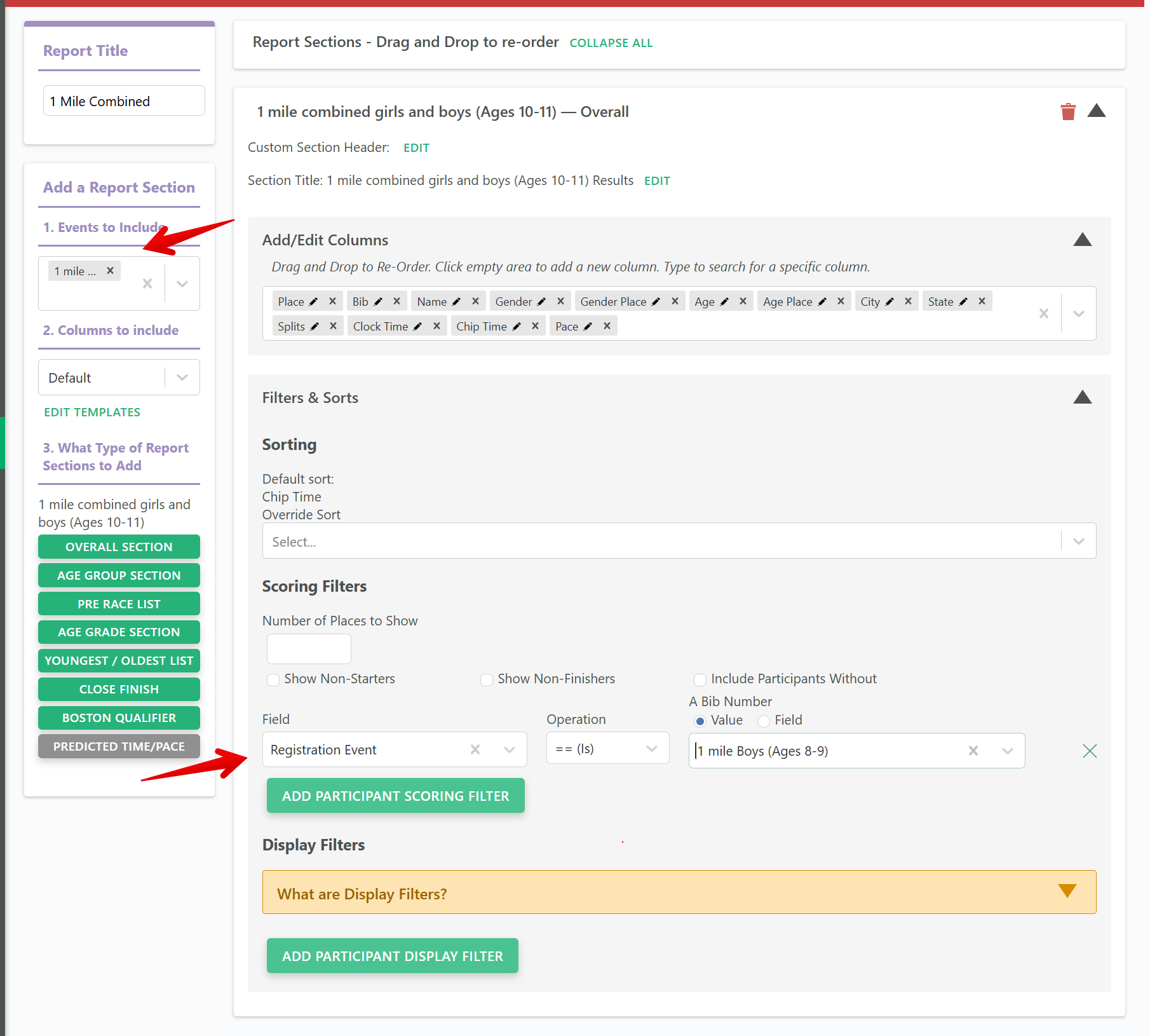
More detail: Create a Filtered Report Section Using Participant Data Filters.
How start times are used
- Clock Time is measured from the participant's Corral Start Time. Participants without a Corral use the Scored Event's Actual Start Time.
- Chip Time uses the participant's chip start read. If that read is missing, or happened before their Corral Start Time, the Corral Start Time is used instead.